> ## Documentation Index
> Fetch the complete documentation index at: https://docs.textql.com/llms.txt
> Use this file to discover all available pages before exploring further.
# SAP HANA Connector
> Connecting TextQL to SAP HANA (on-premise and HANA Cloud)
SAP HANA sits at the center of some of the most complex data estates in the world — finance closes, materials movements, master data, supply chain. The problem has never been that the data isn't there. It's that getting a question answered against it has always meant filing a ticket, waiting for an analyst, or learning a tool most business users never will.
The SAP HANA connector removes that friction. Connect your HANA instance — on-premise or HANA Cloud — in under two minutes: host, port, credentials, schema, done. SSL/TLS on by default. Test before you save.
Once connected, Ana can query HANA directly, join it against anything else you've connected — a cloud warehouse, a REST API, a spreadsheet — run analysis on the combined result, and return a narrative with the SQL and the chart. No data movement, no ETL pipeline to maintain, no separate BI layer to configure. The data stays in HANA. Ana comes to it.
## Supported Deployment Models
TextQL ships a native SAP HANA connector supporting both deployment models out of the box:
* **SAP HANA on-premise** — direct connection over your network path (VPN, VPC peering, private endpoint, or self-hosted deployment inside the customer's VPC)
* **SAP HANA Cloud** — single-toggle configuration that handles port 443 and the TLS server-name requirement automatically
## Prerequisites
To connect TextQL to your SAP HANA instance, you will need:
* **Host** — your HANA server hostname or IP address
* **Port** — typically `39015` for on-premise, `443` for HANA Cloud
* **Username and password** — a database user with read access to the target schema
* **Database name** — defaults to `SYSTEMDB`
* **Schema** (optional) — the default schema Ana will use for queries
## Creating the Connector
Navigate to the [TextQL Connectors Page](https://app.textql.com/connectors) and click **New Connector**. Select **SAP HANA** from the available connectors.
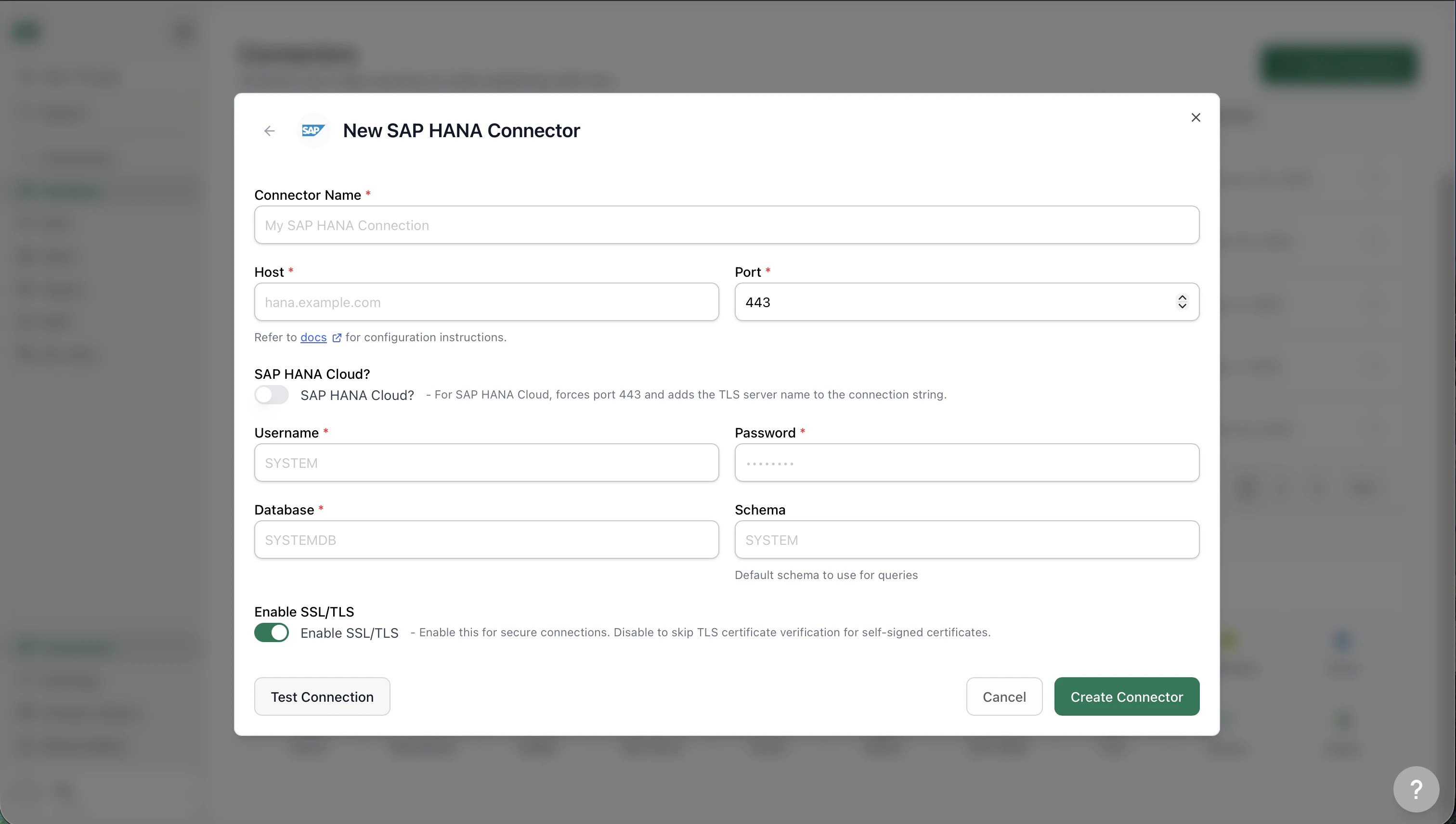 ### Connection Fields
| Field | Required | Description | Default |
| - | - | - | - |
| **Connector Name** | Yes | A descriptive name for this connection | — |
| **Host** | Yes | Your HANA server hostname or IP | — |
| **Port** | Yes | Connection port | `443` |
| **SAP HANA Cloud?** | — | Toggle on for HANA Cloud — forces port 443 and appends the TLS server name to the connection string | Off |
| **Username** | Yes | Database username | `SYSTEM` |
| **Password** | Yes | Database password | — |
| **Database** | Yes | Target database name | `SYSTEMDB` |
| **Schema** | No | Default schema for queries | `SYSTEM` |
| **Enable SSL/TLS** | — | Enable for encrypted connections. When disabled, TLS certificate verification is skipped — use only in environments where you control the certificate chain | On |
### SAP HANA Cloud
Toggle **SAP HANA Cloud?** when connecting to a HANA Cloud instance. This automatically:
* Forces the port to `443`
* Appends the TLS server name to the connection string
You do not need to manually adjust the port or SSL settings when this toggle is on.
### SSL/TLS
SSL/TLS is enabled by default. For on-premise deployments using self-signed certificates, you can disable the toggle to skip certificate verification — only do this in environments where you control the certificate chain.
## SSO (Per-Member OAuth)
Instead of a shared database username and password, each TextQL member can sign in with your identity provider (Okta, Entra ID, Keycloak, or any OIDC-compliant IdP). When a member queries HANA, TextQL passes their IdP-issued JWT to HANA — HANA resolves the database identity from the token, so per-user permissions and auditing apply in HANA itself.
### Prerequisites
* **An OIDC application in your IdP** — create an app registration (e.g. an Okta application integration) and note the **issuer URL**, **client ID**, and **client secret**. Register `https:///auth/hana/callback` as a redirect URI. Enable the `offline_access` scope so TextQL can refresh expired tokens.
* **A JWT provider configured in HANA** — HANA must trust the IdP's signatures for the target database (the `JWT` provider in the HANA cockpit / `CREATE JWT PROVIDER`), with the claim that maps to the HANA user (typically `sub` or `email`) configured as the external identity.
### Connector Fields
Select **SSO (per-member OAuth)** under **How should users authenticate?** and fill in:
| Field | Required | Description |
| - | - | - |
| **OAuth Issuer URL** | Yes | OIDC issuer, e.g. `https://example.okta.com/oauth2/default` — authorize/token endpoints are resolved via discovery |
| **OAuth Client ID** | Yes | Client ID of the IdP application |
| **OAuth Client Secret** | Yes | Client secret of the IdP application |
| **OAuth Scopes** | No | Space-separated; defaults to `openid profile email offline_access` |
Host, port, database, schema, and TLS settings work exactly as with password auth.
### Member Sign-In
Once the connector is saved, each member clicks **Connect** on the connector (or is prompted the first time they run a query) and signs in with the IdP. Tokens are encrypted at rest and refreshed automatically; members can re-authenticate at any time from the Connectors page.
### Silent SSO (No Popup)
If members log in to TextQL via [SSO (OIDC)](/core/admin/sso) with the **same identity provider HANA trusts**, they can skip the popup entirely — TextQL authenticates them to HANA using their existing login session. Select an **SSO Mode** (shown when **SSO (per-member OAuth)** is selected):
| Mode | How it works | Requirements |
| - | - | - |
| **Direct SSO** | TextQL passes the member's login IdP token directly to HANA | IdP must issue JWT access tokens (not opaque tokens) |
| **Token Exchange** | TextQL swaps the login token for a HANA-scoped token at the IdP (RFC 8693), using the connector's client credentials | IdP must support token exchange (Okta, Entra ID, Ping do) |
With either mode enabled, members never see a HANA sign-in: the first query silently authenticates them, and expired tokens are re-exchanged automatically. If silent SSO fails for a member (for example, they logged in without SSO), the popup flow remains as the fallback.
The token exchange endpoint is resolved from the **OAuth Issuer URL** via OIDC discovery — there is no separate endpoint to configure. Set **Audience** only if your IdP requires a specific audience for HANA to accept the exchanged token; leave it blank otherwise.
## Testing the Connection
Click **Test Connection** before saving to verify your credentials and network access. Fix any errors before clicking **Create Connector**.
Having trouble connecting from a self-hosted or VPC deployment? See the [Network Configuration Guide](/core/datasources/databases/network-configuration) for firewall and IP allowlisting setup.
## Troubleshooting
### Connection timeout
* Verify the host and port are reachable from TextQL's network (or your VPC, if using a private deployment)
* Confirm no firewall rules are blocking the connection
* For on-premise instances, ensure VPN or VPC peering is active
### Authentication error
* Double-check the username and password
* Confirm the user has `SELECT` privileges on the target database and schema
* For HANA Cloud, ensure the user is not subject to an IP allowlist that excludes TextQL
### Certificate error
* If using a self-signed certificate on-premise, disable **Enable SSL/TLS** to skip verification
* For HANA Cloud, leave SSL/TLS enabled — HANA Cloud requires TLS
### Wrong schema or missing tables
* Specify the **Schema** field explicitly rather than relying on the default
* Confirm the database user has visibility into the schema you expect Ana to query
## What's Next
Once your SAP HANA connector is set up:
* Ask Ana natural language questions about your HANA data
* Join HANA tables against other connected sources in a single query
* Build playbooks that run recurring analysis against HANA and deliver results to Slack or Teams
* Use the Ontology layer to define business metrics on top of your HANA schema
This documentation is built and hosted on [Mintlify](https://mintlify.com), a developer documentation platform.
### Connection Fields
| Field | Required | Description | Default |
| - | - | - | - |
| **Connector Name** | Yes | A descriptive name for this connection | — |
| **Host** | Yes | Your HANA server hostname or IP | — |
| **Port** | Yes | Connection port | `443` |
| **SAP HANA Cloud?** | — | Toggle on for HANA Cloud — forces port 443 and appends the TLS server name to the connection string | Off |
| **Username** | Yes | Database username | `SYSTEM` |
| **Password** | Yes | Database password | — |
| **Database** | Yes | Target database name | `SYSTEMDB` |
| **Schema** | No | Default schema for queries | `SYSTEM` |
| **Enable SSL/TLS** | — | Enable for encrypted connections. When disabled, TLS certificate verification is skipped — use only in environments where you control the certificate chain | On |
### SAP HANA Cloud
Toggle **SAP HANA Cloud?** when connecting to a HANA Cloud instance. This automatically:
* Forces the port to `443`
* Appends the TLS server name to the connection string
You do not need to manually adjust the port or SSL settings when this toggle is on.
### SSL/TLS
SSL/TLS is enabled by default. For on-premise deployments using self-signed certificates, you can disable the toggle to skip certificate verification — only do this in environments where you control the certificate chain.
## SSO (Per-Member OAuth)
Instead of a shared database username and password, each TextQL member can sign in with your identity provider (Okta, Entra ID, Keycloak, or any OIDC-compliant IdP). When a member queries HANA, TextQL passes their IdP-issued JWT to HANA — HANA resolves the database identity from the token, so per-user permissions and auditing apply in HANA itself.
### Prerequisites
* **An OIDC application in your IdP** — create an app registration (e.g. an Okta application integration) and note the **issuer URL**, **client ID**, and **client secret**. Register `https:///auth/hana/callback` as a redirect URI. Enable the `offline_access` scope so TextQL can refresh expired tokens.
* **A JWT provider configured in HANA** — HANA must trust the IdP's signatures for the target database (the `JWT` provider in the HANA cockpit / `CREATE JWT PROVIDER`), with the claim that maps to the HANA user (typically `sub` or `email`) configured as the external identity.
### Connector Fields
Select **SSO (per-member OAuth)** under **How should users authenticate?** and fill in:
| Field | Required | Description |
| - | - | - |
| **OAuth Issuer URL** | Yes | OIDC issuer, e.g. `https://example.okta.com/oauth2/default` — authorize/token endpoints are resolved via discovery |
| **OAuth Client ID** | Yes | Client ID of the IdP application |
| **OAuth Client Secret** | Yes | Client secret of the IdP application |
| **OAuth Scopes** | No | Space-separated; defaults to `openid profile email offline_access` |
Host, port, database, schema, and TLS settings work exactly as with password auth.
### Member Sign-In
Once the connector is saved, each member clicks **Connect** on the connector (or is prompted the first time they run a query) and signs in with the IdP. Tokens are encrypted at rest and refreshed automatically; members can re-authenticate at any time from the Connectors page.
### Silent SSO (No Popup)
If members log in to TextQL via [SSO (OIDC)](/core/admin/sso) with the **same identity provider HANA trusts**, they can skip the popup entirely — TextQL authenticates them to HANA using their existing login session. Select an **SSO Mode** (shown when **SSO (per-member OAuth)** is selected):
| Mode | How it works | Requirements |
| - | - | - |
| **Direct SSO** | TextQL passes the member's login IdP token directly to HANA | IdP must issue JWT access tokens (not opaque tokens) |
| **Token Exchange** | TextQL swaps the login token for a HANA-scoped token at the IdP (RFC 8693), using the connector's client credentials | IdP must support token exchange (Okta, Entra ID, Ping do) |
With either mode enabled, members never see a HANA sign-in: the first query silently authenticates them, and expired tokens are re-exchanged automatically. If silent SSO fails for a member (for example, they logged in without SSO), the popup flow remains as the fallback.
The token exchange endpoint is resolved from the **OAuth Issuer URL** via OIDC discovery — there is no separate endpoint to configure. Set **Audience** only if your IdP requires a specific audience for HANA to accept the exchanged token; leave it blank otherwise.
## Testing the Connection
Click **Test Connection** before saving to verify your credentials and network access. Fix any errors before clicking **Create Connector**.
Having trouble connecting from a self-hosted or VPC deployment? See the [Network Configuration Guide](/core/datasources/databases/network-configuration) for firewall and IP allowlisting setup.
## Troubleshooting
### Connection timeout
* Verify the host and port are reachable from TextQL's network (or your VPC, if using a private deployment)
* Confirm no firewall rules are blocking the connection
* For on-premise instances, ensure VPN or VPC peering is active
### Authentication error
* Double-check the username and password
* Confirm the user has `SELECT` privileges on the target database and schema
* For HANA Cloud, ensure the user is not subject to an IP allowlist that excludes TextQL
### Certificate error
* If using a self-signed certificate on-premise, disable **Enable SSL/TLS** to skip verification
* For HANA Cloud, leave SSL/TLS enabled — HANA Cloud requires TLS
### Wrong schema or missing tables
* Specify the **Schema** field explicitly rather than relying on the default
* Confirm the database user has visibility into the schema you expect Ana to query
## What's Next
Once your SAP HANA connector is set up:
* Ask Ana natural language questions about your HANA data
* Join HANA tables against other connected sources in a single query
* Build playbooks that run recurring analysis against HANA and deliver results to Slack or Teams
* Use the Ontology layer to define business metrics on top of your HANA schema
This documentation is built and hosted on [Mintlify](https://mintlify.com), a developer documentation platform.