> ## Documentation Index
> Fetch the complete documentation index at: https://docs.textql.com/llms.txt
> Use this file to discover all available pages before exploring further.
# Slack
> TextQL integration for Slack
TextQL's integration for Slack allows you to seamlessly interact with Ana directly within your Slack workspace.
Below you'll find instructions on how to add Ana to your Slack, use its features, and understand its capabilities.
## Slack Plan Requirements
A **paid Slack plan** is required to access Ana's AI agent in
Slack's agent/assistant container (the split-view AI panel). On free
Slack plans, all other features still work: you can mention `@Ana`
in channels, send Ana direct messages, and receive scheduled agent
results in channels.
## Permissions and data access
Here is how identity, permissions, and data access work when you use Ana in Slack.
### Identity: your Slack account maps to your TextQL account
When you message Ana in Slack, she matches your Slack profile email to a TextQL member account in the connected organization. Each message runs **as the member who sent it**. Everything except `help` needs a matching account. Without one, Ana replies that she couldn't find your account. Ask an admin to invite you, and make sure your Slack email matches your TextQL account email.
### Which connectors a new conversation uses
When a new Slack conversation starts, Ana picks connectors and tool settings in this order:
1. **Channel context override**: if the channel has channel context configured (see below), that playbook's connector and tool settings are used. This applies even when the playbook lists no connectors; the conversation then has no connectors.
2. **Your personal defaults**: otherwise, the connector selection you have saved in the TextQL web app is used.
3. **Organization defaults**: if you have no personal selection, or you no longer have access to any connector in it, your organization's default connectors are used.
Your personal and organization defaults are filtered to connectors **you are permitted to access**. Channel-context connectors are not: Ana checks only that they still exist in the organization. Datasets and dashboards attached to the channel-context playbook are also added without checking the asker's access.
Connector and tool settings cannot be changed from inside Slack. Adjust them in the web app; changes apply to new Slack conversations.
### What Ana checks when she runs a query
A conversation keeps the connectors it started with. When Ana runs a query, she does not re-check whether the person who sent the current message can access those connectors. What she does apply to that person:
* **Per-user sign-in connectors** (OAuth): the query runs with the sender's own credentials. If the sender has not signed in to that connector, the query does not run until they do.
* **Shared-credential connectors**: the query runs with the connector's shared credential.
* **Role permissions** that control which tools Ana can use (for example, raw SQL) and **ontology row-level security rules** are evaluated for the sender.
This means a person can query a shared-credential connector that their own account cannot access in two cases: in a conversation that uses channel-context connectors, and in a thread follow-up (below).
### Thread follow-ups keep the original connectors
An `@Ana` reply in an existing thread continues that conversation, including its connectors. This applies to threads started with `@Ana` and to threads where Ana posted scheduled agent results. Any channel member with a TextQL account in the organization can reply this way; Slack users without a matching account can't continue it.
The **Retry** button and answers to Ana's clarifying questions are stricter: they require access to the conversation and its connectors.
## Who can see Ana's answers
Visibility follows standard Slack rules. Ana does not add any extra sharing:
* **In a channel**: Ana replies in the thread, so **everyone who can see that channel can see the answer**. The answer can include any data the conversation's connectors return, so do not @Ana about data in a channel whose members shouldn't see the result. Use a private channel with the right membership, or a DM.
* **In a direct message**: only you and Ana see the conversation.
* **Thread follow-ups**: replying with `@Ana` in an existing thread continues the same conversation, including its context and connectors, for any channel member with a TextQL account who replies.
* Each Slack conversation also exists as a chat in the TextQL web app (use the "View in App" link).
Rule of thumb: treat @Ana in a channel like posting the answer to that
channel yourself. For sensitive questions, DM Ana or use a private
channel with the right membership.
## Add Ana to Your Slack
Only the administrators of your TextQL Organization have access to
these settings.
1. **Navigate to Connectors**:
Go to [app.textql.com/connectors](https://app.textql.com/connectors) (or click **Connectors** in the bottom-left corner of the app), then select the **Slack** tab.
2. **Connect to Slack**:
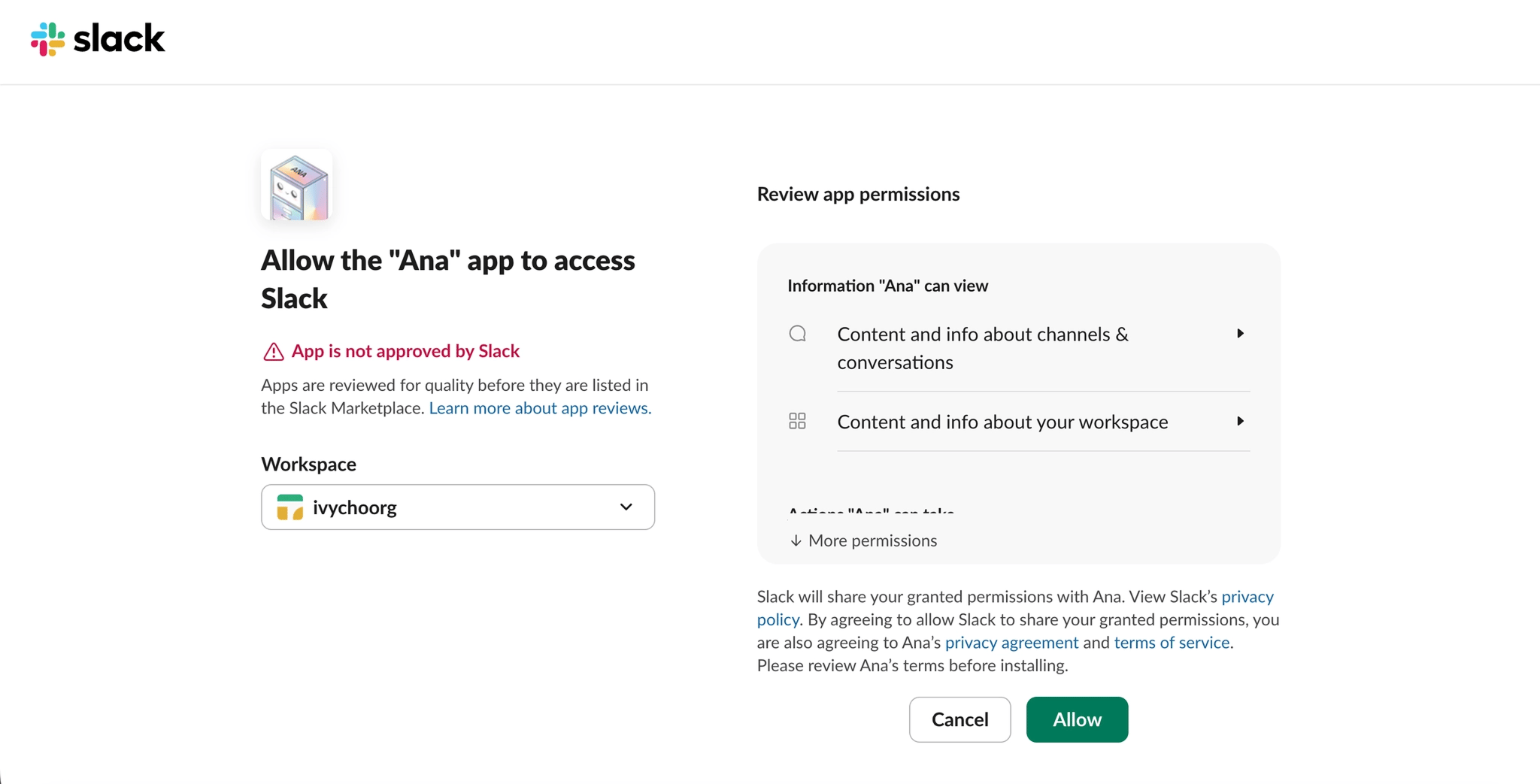
Click **Connect to Slack**. You'll be redirected to Slack's approval page asking you to allow Ana to access your Slack workspace. Click **Allow**. You should see a "Slack installed successfully" confirmation shortly after.
3. **Sync channels and users**:
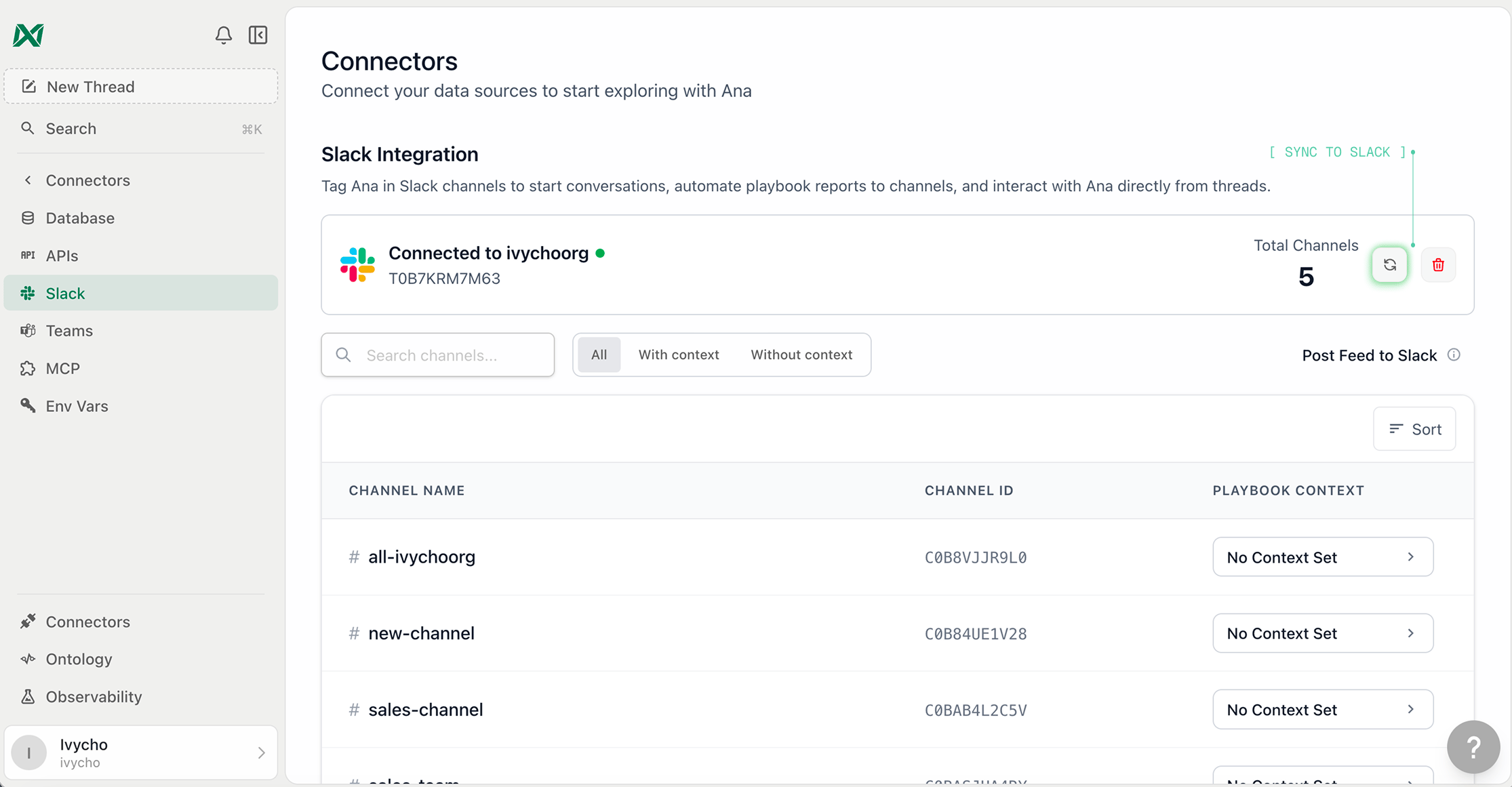
After connecting, TextQL syncs your workspace's channel list and active members so that you can pick delivery channels for scheduled agents and so Ana can match Slack users to their TextQL accounts. Only channel and user names are synced — no message content. If the channel list looks empty or out of date, click the **Sync channels and users** (refresh) button; the list updates within a few seconds.
## Features
Ana offers the following capabilities within Slack:
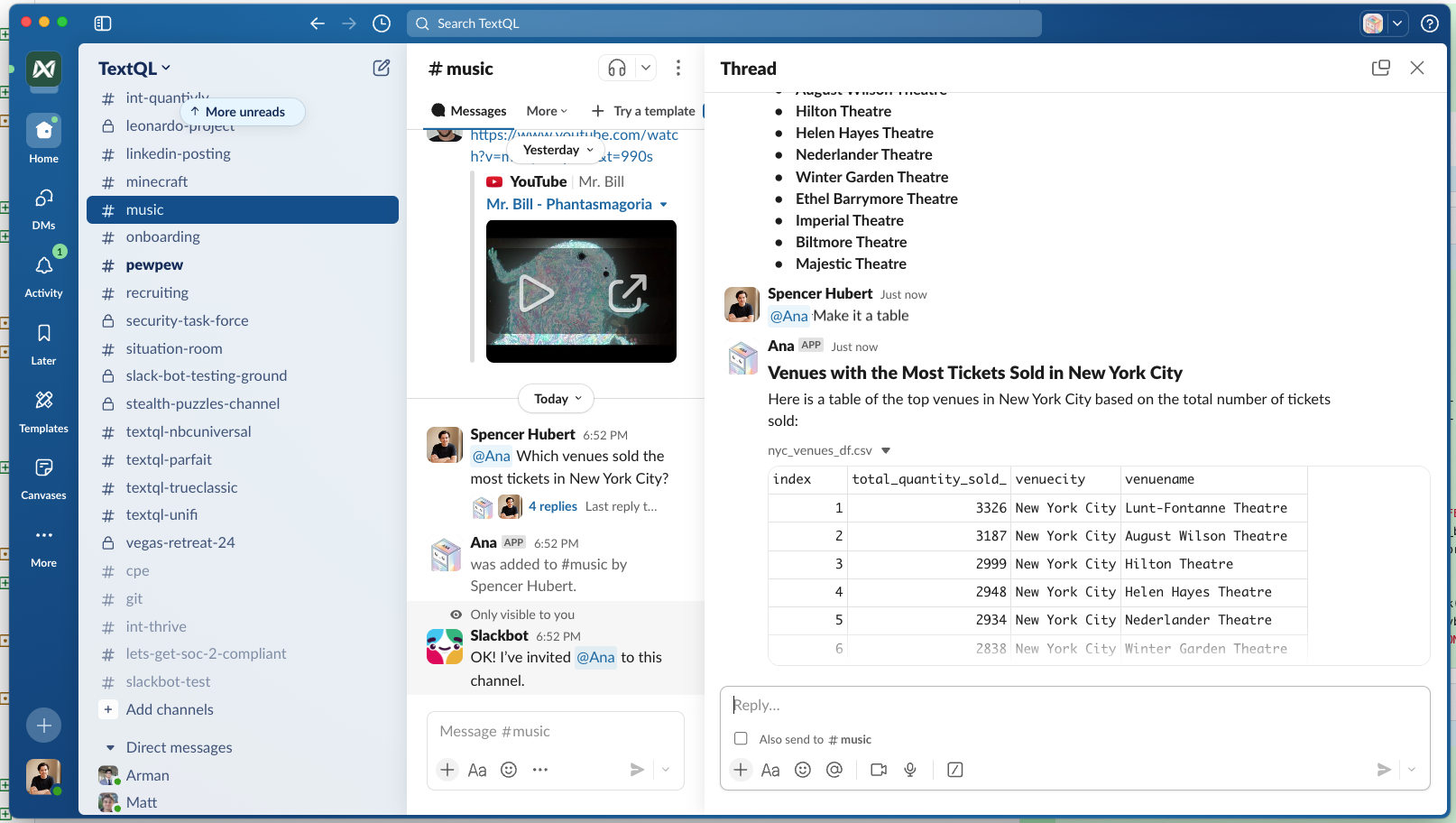
* **Answer Questions**: Pose questions to Ana and receive detailed answers based on your organization's data.
* **Send Back Datasets and Figures**: Receive datasets and visualizations directly in your Slack conversations.
* **Process Uploaded Files**: Attach files (CSV, Excel, PDF, images, and more) to your message and Ana will analyze them alongside your question.
* **Scheduled Delivery**: Schedule agents in TextQL to post their results to a Slack channel of your choice. Ana automatically joins the channel you select, and delivered messages are posted under the name and avatar of the user who scheduled them so teammates know who set up the report.
## Using Ana in Slack
Once Ana has been added to your Slack organization, you can start chats with her in the following ways:
* **In a Channel**: Use `@Ana` in your message to start a new chat with Ana.
To send follow-up messages to Ana and continue her analysis, simply reply to her in the same thread with `@Ana`.
If Ana hasn't been added to the current channel, a popup will prompt
you to invite her. Click **Add** to invite Ana to the channel.
* **With a Direct Message**: Send a direct message to Ana to start a new chat and receive responses privately.
To send follow-up messages to Ana and continue her analysis, simply reply in the direct message.
To start a fresh chat, click **+ New Chat** in the upper right corner of the Slack app.
* **In the AI Agent Panel** (paid Slack plans): Open Ana from Slack's top-bar agent entry point to chat side-by-side with whatever you're working on.
Type `help` in a direct message or the agent panel (or use the
`/help` command) at any time to see usage instructions.
## Slack Channel Context
In addition to answering questions, Ana can also use channel-specific context.
Channel context ensures that whenever Ana is mentioned in a specific Slack channel, she has the right background information to guide her responses.
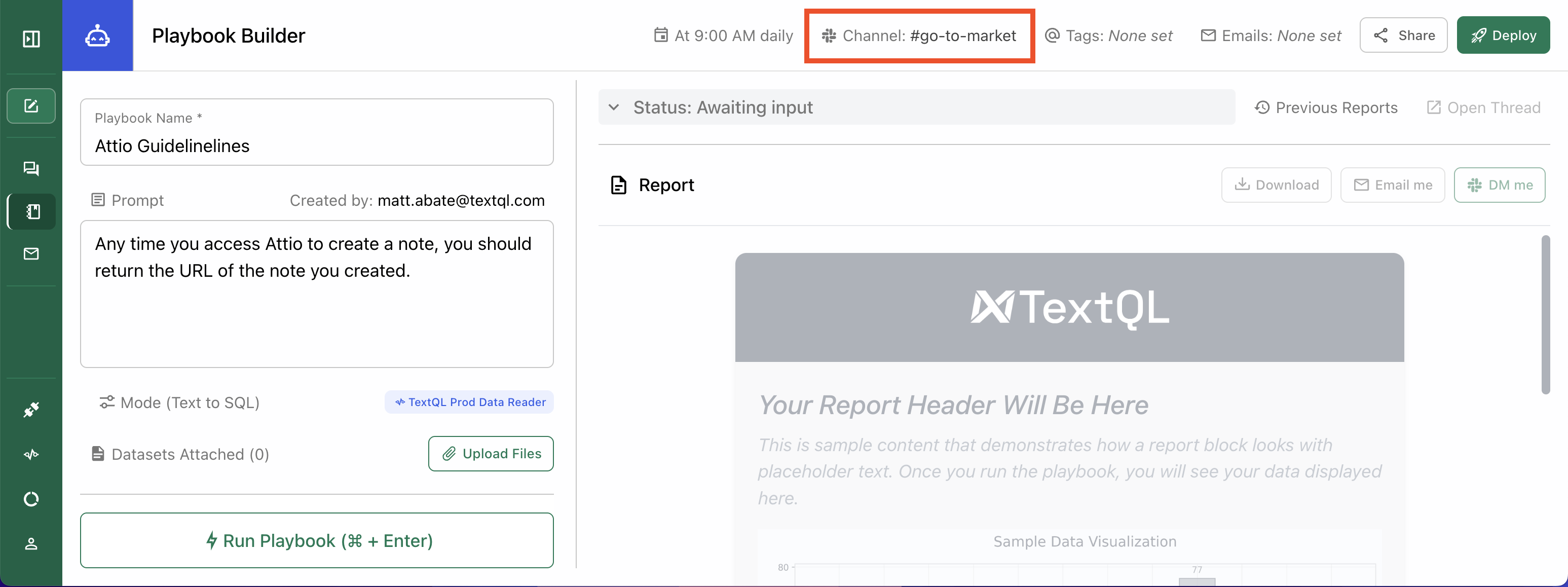
Channel context is managed through Playbooks. The playbook's connector and tool settings **override the asker's defaults** for conversations started in that channel, even when the playbook lists no connectors. Ana checks that the playbook's connectors still exist in the organization, not that the asker can access them. See [Permissions and data access](#permissions-and-data-access).
To set it up:
1. **Create a New Playbook:** Navigate to the Playbooks section in the TextQL platform and click **Create Playbook**.
2. **Write the Channel Context:**
Use the provided prompt box to write up the context document for the selected channel. This might include project details, metrics definitions, or links to relevant resources.
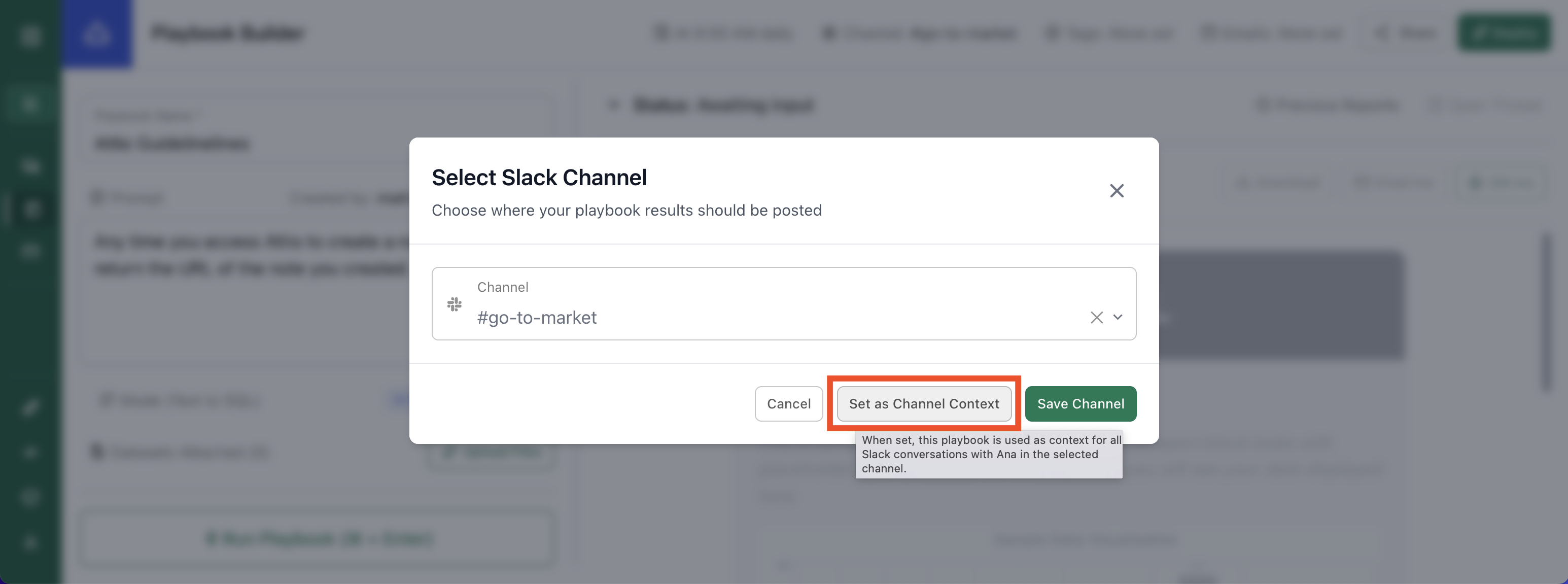
3. **Select a Slack Channel:**
Use the channel selector to choose the Slack channel you want to associate with this playbook. Click **Set as Channel Context**, and then hit Save.
4. **Keep the Playbook deactivated:**
The playbook must remain **deactivated** to function as channel context.
Any datasets and dashboards attached to the playbook are
automatically included in the Slack conversation when channel
context is applied. If an attachment fails, Ana will post a warning
in the thread so you know to investigate.
This feature allows you to maintain different contexts across different Slack channels—for example, one channel may hold context about sales performance, while another focuses on product metrics.
## Need Help?
For further assistance or to request early access, please contact [support@textql.com](mailto:support@textql.com).
## Privacy Policy
For information about how we handle your data and protect your privacy when using TextQL's integration for Slack, please review our [Privacy Policy](https://textql.com/privacy).
This documentation is built and hosted on [Mintlify](https://mintlify.com), a developer documentation platform.
 3. **Sync channels and users**:
After connecting, TextQL syncs your workspace's channel list and active members so that you can pick delivery channels for scheduled agents and so Ana can match Slack users to their TextQL accounts. Only channel and user names are synced — no message content. If the channel list looks empty or out of date, click the **Sync channels and users** (refresh) button; the list updates within a few seconds.
3. **Sync channels and users**:
After connecting, TextQL syncs your workspace's channel list and active members so that you can pick delivery channels for scheduled agents and so Ana can match Slack users to their TextQL accounts. Only channel and user names are synced — no message content. If the channel list looks empty or out of date, click the **Sync channels and users** (refresh) button; the list updates within a few seconds.
 ## Features
Ana offers the following capabilities within Slack:
* **Answer Questions**: Pose questions to Ana and receive detailed answers based on your organization's data.
* **Send Back Datasets and Figures**: Receive datasets and visualizations directly in your Slack conversations.
* **Process Uploaded Files**: Attach files (CSV, Excel, PDF, images, and more) to your message and Ana will analyze them alongside your question.
* **Scheduled Delivery**: Schedule agents in TextQL to post their results to a Slack channel of your choice. Ana automatically joins the channel you select, and delivered messages are posted under the name and avatar of the user who scheduled them so teammates know who set up the report.
## Using Ana in Slack
Once Ana has been added to your Slack organization, you can start chats with her in the following ways:
* **In a Channel**: Use `@Ana` in your message to start a new chat with Ana.
To send follow-up messages to Ana and continue her analysis, simply reply to her in the same thread with `@Ana`.
## Features
Ana offers the following capabilities within Slack:
* **Answer Questions**: Pose questions to Ana and receive detailed answers based on your organization's data.
* **Send Back Datasets and Figures**: Receive datasets and visualizations directly in your Slack conversations.
* **Process Uploaded Files**: Attach files (CSV, Excel, PDF, images, and more) to your message and Ana will analyze them alongside your question.
* **Scheduled Delivery**: Schedule agents in TextQL to post their results to a Slack channel of your choice. Ana automatically joins the channel you select, and delivered messages are posted under the name and avatar of the user who scheduled them so teammates know who set up the report.
## Using Ana in Slack
Once Ana has been added to your Slack organization, you can start chats with her in the following ways:
* **In a Channel**: Use `@Ana` in your message to start a new chat with Ana.
To send follow-up messages to Ana and continue her analysis, simply reply to her in the same thread with `@Ana`.
 This feature allows you to maintain different contexts across different Slack channels—for example, one channel may hold context about sales performance, while another focuses on product metrics.
## Need Help?
For further assistance or to request early access, please contact [support@textql.com](mailto:support@textql.com).
## Privacy Policy
For information about how we handle your data and protect your privacy when using TextQL's integration for Slack, please review our [Privacy Policy](https://textql.com/privacy).
This documentation is built and hosted on [Mintlify](https://mintlify.com), a developer documentation platform.
This feature allows you to maintain different contexts across different Slack channels—for example, one channel may hold context about sales performance, while another focuses on product metrics.
## Need Help?
For further assistance or to request early access, please contact [support@textql.com](mailto:support@textql.com).
## Privacy Policy
For information about how we handle your data and protect your privacy when using TextQL's integration for Slack, please review our [Privacy Policy](https://textql.com/privacy).
This documentation is built and hosted on [Mintlify](https://mintlify.com), a developer documentation platform.