> ## Documentation Index
> Fetch the complete documentation index at: https://docs.textql.com/llms.txt
> Use this file to discover all available pages before exploring further.
# MS Teams
> TextQL Microsoft Teams Integration
TextQL's integration for Microsoft Teams allows you to seamlessly interact with Ana directly within your Teams workspace.
Below you'll find instructions on how to add Ana to your Teams, use its features, and understand its capabilities.
## Organization Defaults
**Important for System Administrators**: Ana in Teams uses your organization's default settings for data connectors and available tools. Only system administrators can view and modify these defaults in the Configuration settings. All Teams users will have access to the same default connector and tool set configured by your organization administrators.
## Add Ana to Your Teams
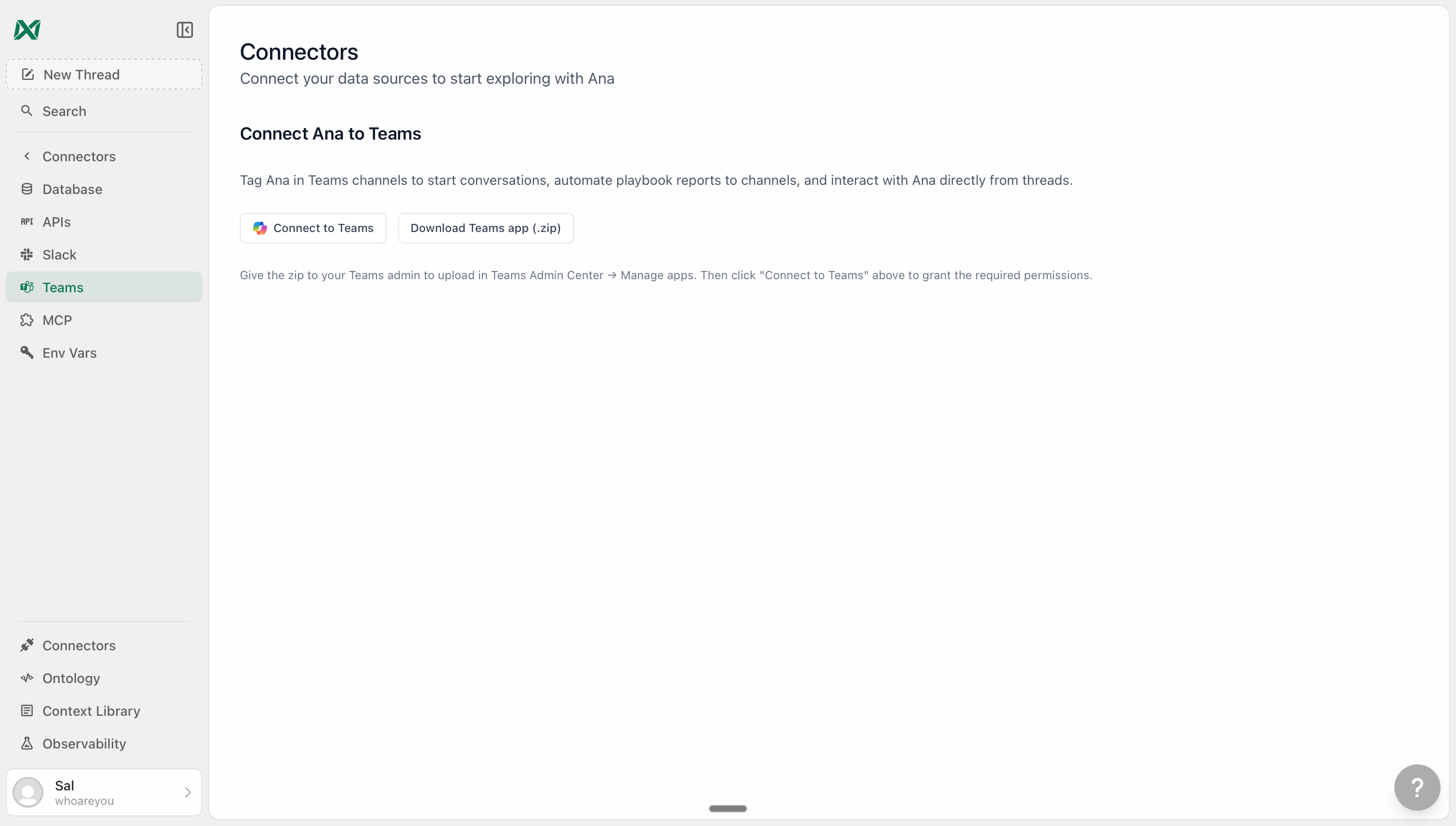
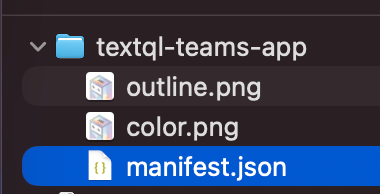
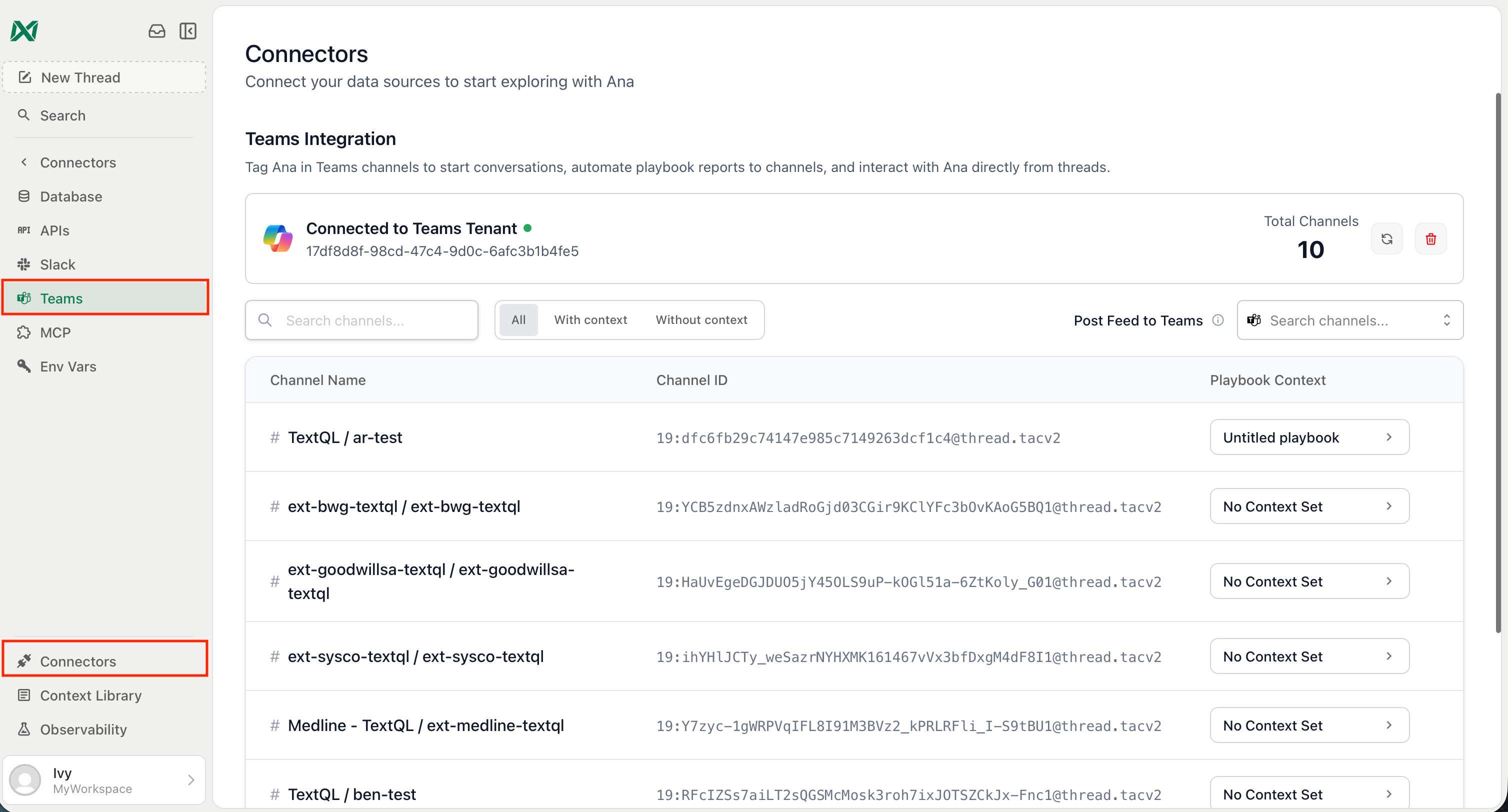
1. **Download the Teams app package**: From TextQL, navigate to **Connectors > Teams** and click **Download Teams app (.zip)** to save the app package.
 The download is only available on TextQL hosted deployments. For on-prem or VPC deployments, contact [support@textql.com](mailto:support@textql.com) for a custom build.
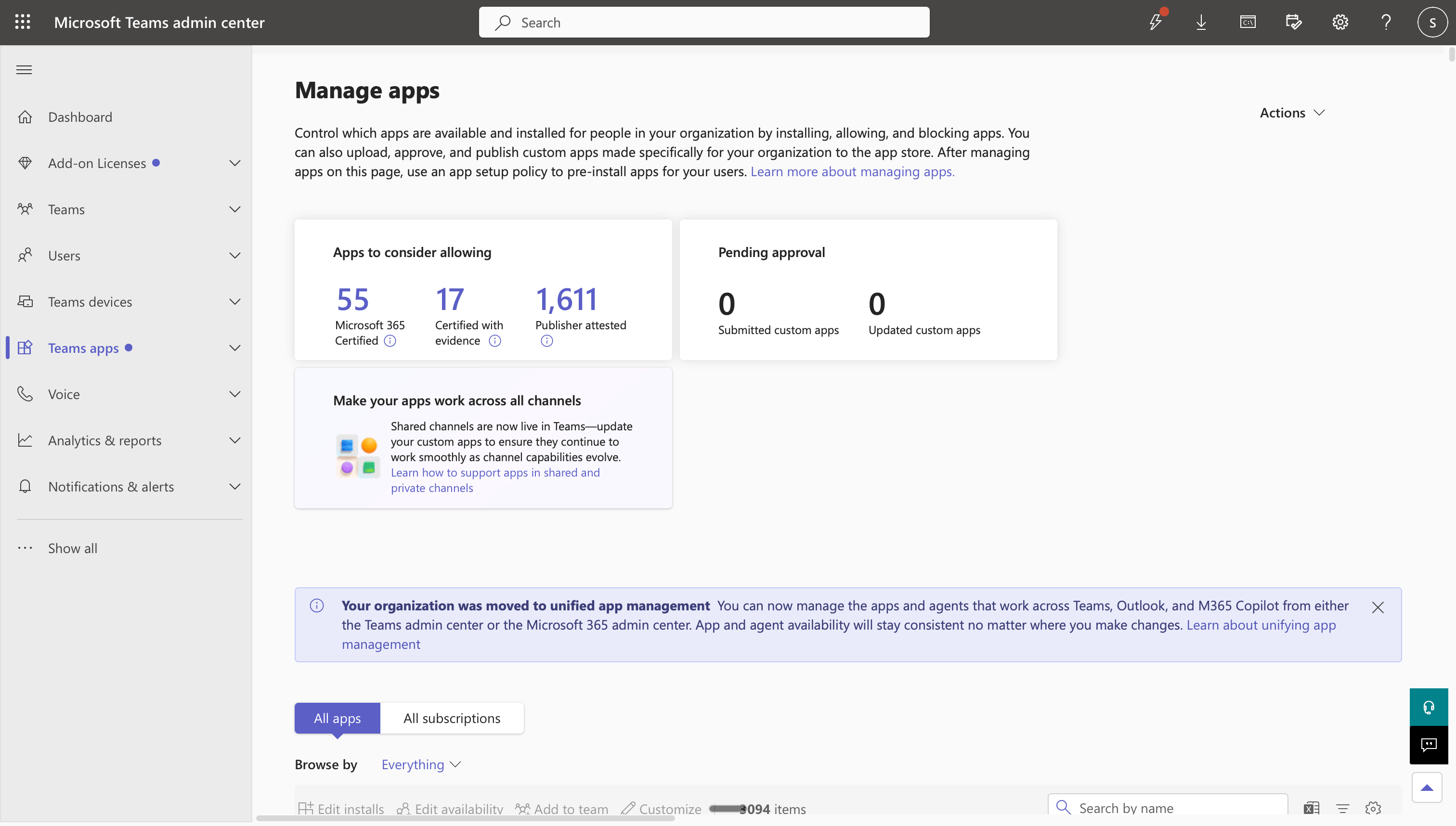
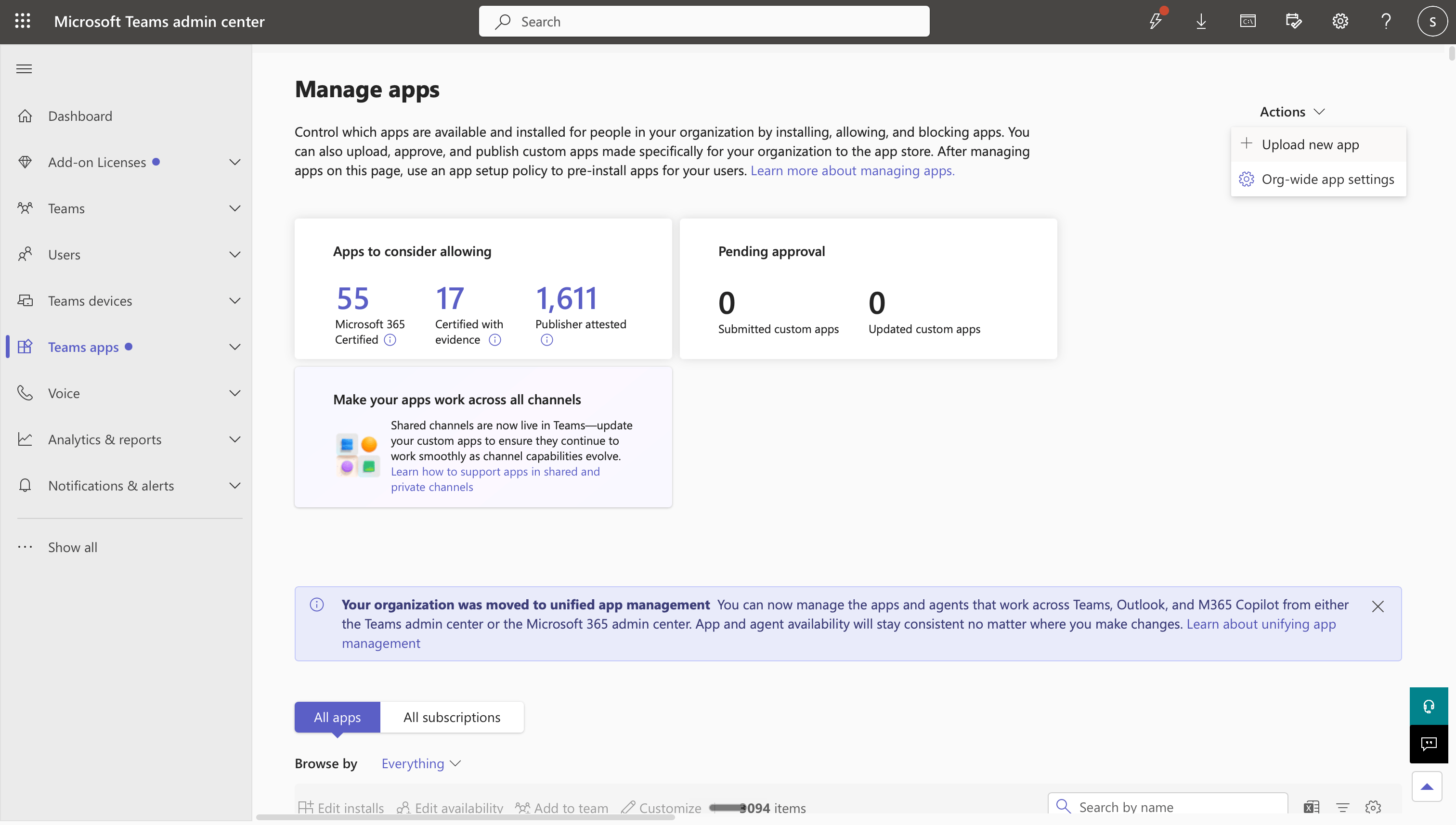
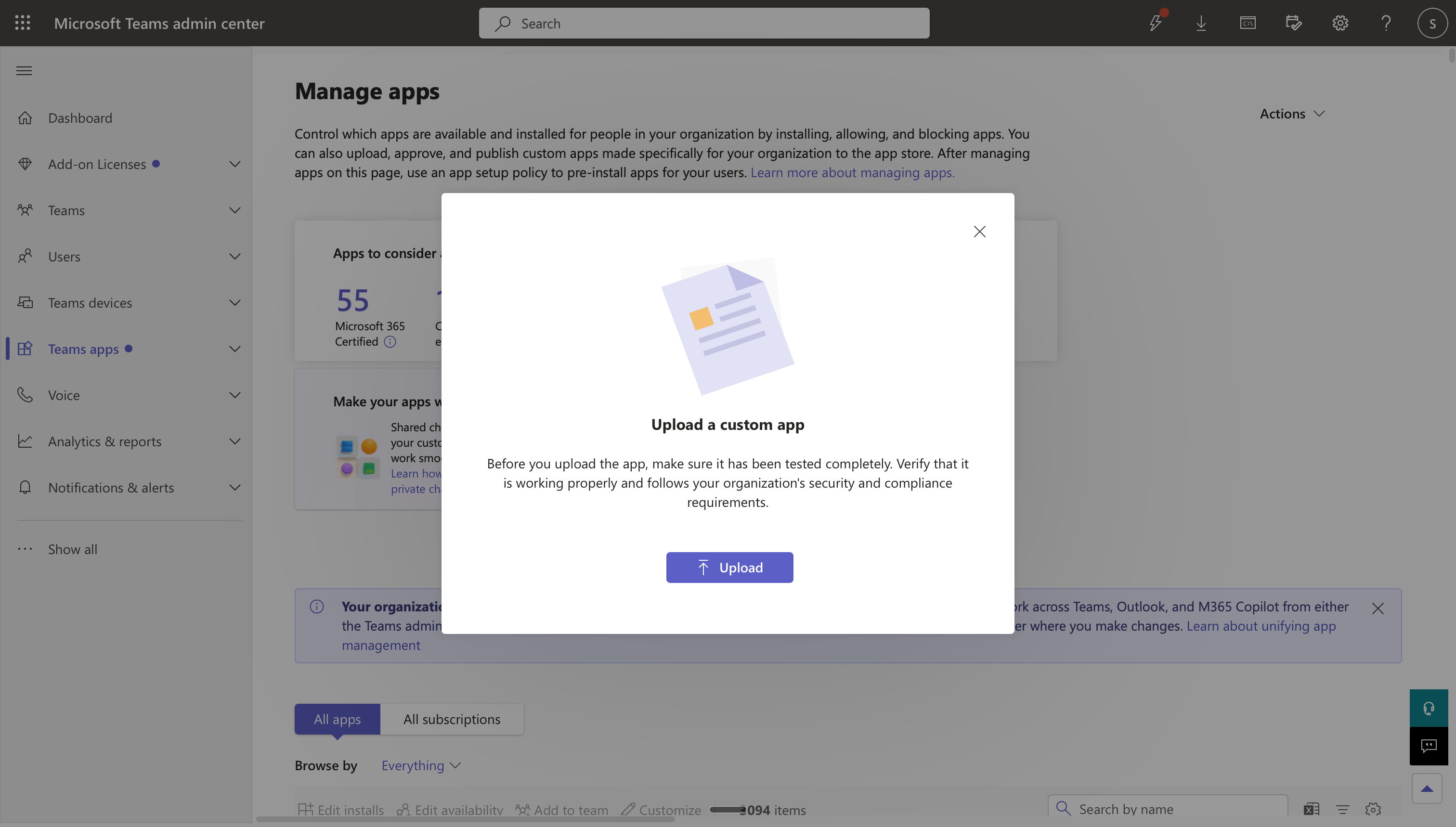
2. **Upload to Teams Admin Center**: Your Microsoft 365 tenant admin should sign in to the [Microsoft Teams Admin Center](https://admin.teams.microsoft.com/), navigate to **Teams apps > Manage apps**, click **Upload new app**, and select the `textql-teams-app.zip`. Make sure the app is **Allowed** for your organization.
The download is only available on TextQL hosted deployments. For on-prem or VPC deployments, contact [support@textql.com](mailto:support@textql.com) for a custom build.
2. **Upload to Teams Admin Center**: Your Microsoft 365 tenant admin should sign in to the [Microsoft Teams Admin Center](https://admin.teams.microsoft.com/), navigate to **Teams apps > Manage apps**, click **Upload new app**, and select the `textql-teams-app.zip`. Make sure the app is **Allowed** for your organization.
 3. **Grant admin consent**: Open the [Microsoft Entra Admin Center](https://entra.microsoft.com/), find **Ana by TextQL** under **Enterprise applications**, open the **Permissions** tab, and click **Grant admin consent for \[your tenant]**.
The permissions Ana requests are:
| Permission | Purpose |
| - | - |
| `User.ReadBasic.All` | Resolve `@`-mentions to names and emails. |
| `Team.ReadBasic.All` | List the teams Ana is installed in. |
| `Channel.ReadBasic.All` | List channels for the Channel Context picker. |
| `TeamMember.Read.All` | Resolve channel members when delivering reports and DMs. |
| `Files.Read.All` | Download files (CSV, Excel, PDF, etc.) that users attach in chats and channels. |
Ana also declares two resource-specific consent (RSC) permissions in the app package. Entra admin consent does not cover these. Teams grants them when Ana is added to a team or group chat, or when the app is updated there, so an installed team or chat picks up a newly added RSC permission only after the app is updated in it.
| RSC permission | Purpose |
| - | - |
| `ChannelMessage.Read.Group` | Read prior messages in a thread when a user replies and `@`-mentions Ana, so Ana has thread context, and read the file attached to a channel message when Teams leaves it out of the bot payload. Granted per team. |
| `ChatMessage.Read.Chat` | Read the file attached to a group chat message. Teams does not deliver group chat attachments to bots directly, so without this grant Ana cannot see files shared in group chats. Granted per group chat. |
4. **Connect Ana to TextQL**: Back in TextQL on **Connectors > Teams**, click **Connect to Teams** to complete the OAuth flow that links the installed Teams bot to your TextQL organization.
3. **Grant admin consent**: Open the [Microsoft Entra Admin Center](https://entra.microsoft.com/), find **Ana by TextQL** under **Enterprise applications**, open the **Permissions** tab, and click **Grant admin consent for \[your tenant]**.
The permissions Ana requests are:
| Permission | Purpose |
| - | - |
| `User.ReadBasic.All` | Resolve `@`-mentions to names and emails. |
| `Team.ReadBasic.All` | List the teams Ana is installed in. |
| `Channel.ReadBasic.All` | List channels for the Channel Context picker. |
| `TeamMember.Read.All` | Resolve channel members when delivering reports and DMs. |
| `Files.Read.All` | Download files (CSV, Excel, PDF, etc.) that users attach in chats and channels. |
Ana also declares two resource-specific consent (RSC) permissions in the app package. Entra admin consent does not cover these. Teams grants them when Ana is added to a team or group chat, or when the app is updated there, so an installed team or chat picks up a newly added RSC permission only after the app is updated in it.
| RSC permission | Purpose |
| - | - |
| `ChannelMessage.Read.Group` | Read prior messages in a thread when a user replies and `@`-mentions Ana, so Ana has thread context, and read the file attached to a channel message when Teams leaves it out of the bot payload. Granted per team. |
| `ChatMessage.Read.Chat` | Read the file attached to a group chat message. Teams does not deliver group chat attachments to bots directly, so without this grant Ana cannot see files shared in group chats. Granted per group chat. |
4. **Connect Ana to TextQL**: Back in TextQL on **Connectors > Teams**, click **Connect to Teams** to complete the OAuth flow that links the installed Teams bot to your TextQL organization.
 5. **Install Ana into teams**: Users can install Ana from the Teams app catalog (search "Ana"), or your admin can deploy it org-wide or to specific groups from Teams Admin Center.
## Features
Ana offers the following capabilities within Teams:
* **Answer Questions**: Pose questions to Ana and receive detailed answers based on your organization's data.
* **Send Back Datasets and Figures**: Receive datasets and visualizations directly in your Teams conversations.
* **Read User-Uploaded Files**: Attach files (CSV, Excel, PDF, images) via the paperclip in a 1:1 chat with Ana, in a group chat Ana has been added to, or in a channel where Ana is installed. Group chat files require app version 1.0.13 or later. If you installed an earlier version, upload the new package in Teams Admin Center so the added permission is granted.
## Using Ana in Teams
Once Ana has been added to your Teams tenant, you can start chats with her in the following ways:
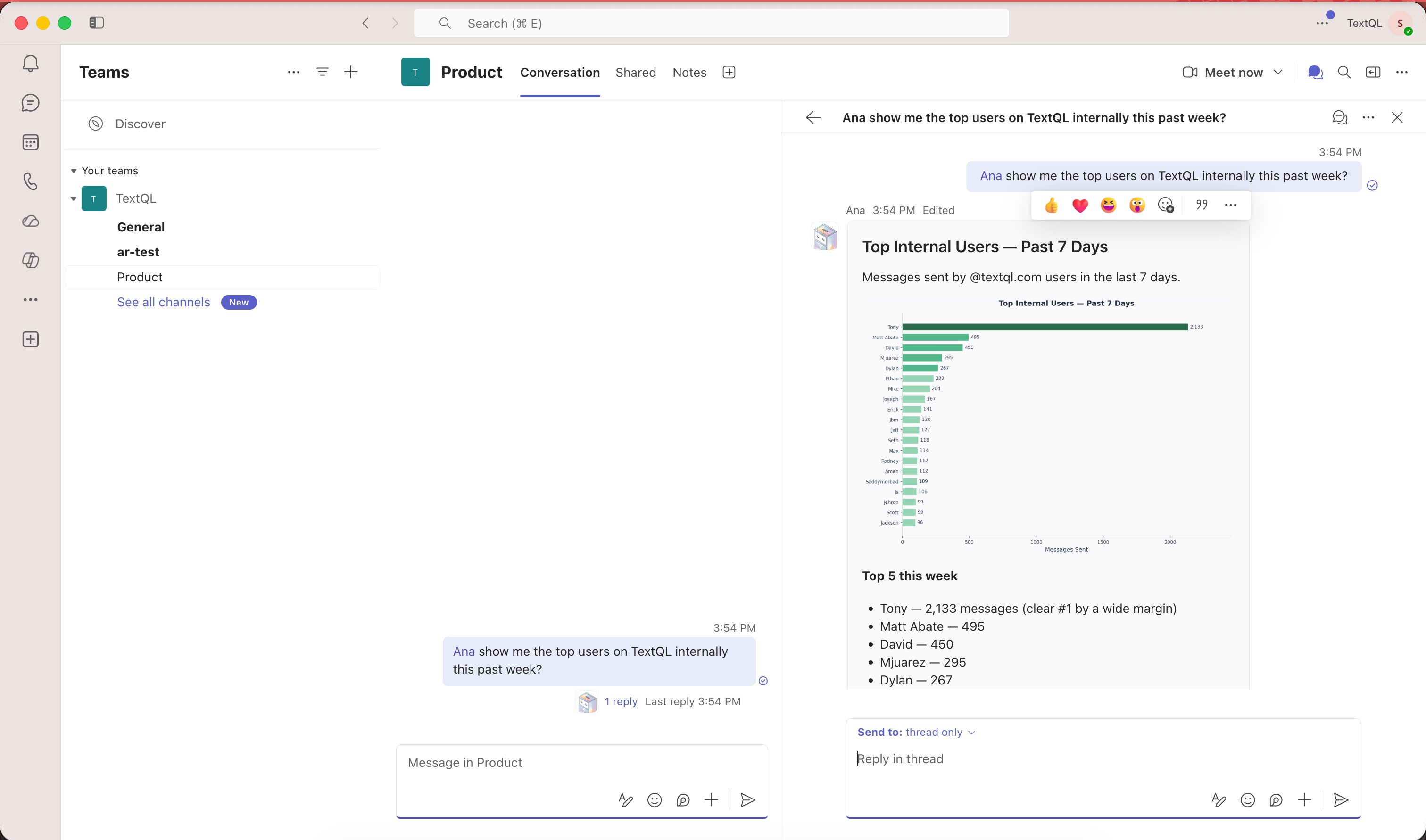
* **In a Channel**: Use `@Ana` in your message to start a new chat with Ana.
To send follow-up messages to Ana and continue her analysis, simply reply to her in the same thread.
5. **Install Ana into teams**: Users can install Ana from the Teams app catalog (search "Ana"), or your admin can deploy it org-wide or to specific groups from Teams Admin Center.
## Features
Ana offers the following capabilities within Teams:
* **Answer Questions**: Pose questions to Ana and receive detailed answers based on your organization's data.
* **Send Back Datasets and Figures**: Receive datasets and visualizations directly in your Teams conversations.
* **Read User-Uploaded Files**: Attach files (CSV, Excel, PDF, images) via the paperclip in a 1:1 chat with Ana, in a group chat Ana has been added to, or in a channel where Ana is installed. Group chat files require app version 1.0.13 or later. If you installed an earlier version, upload the new package in Teams Admin Center so the added permission is granted.
## Using Ana in Teams
Once Ana has been added to your Teams tenant, you can start chats with her in the following ways:
* **In a Channel**: Use `@Ana` in your message to start a new chat with Ana.
To send follow-up messages to Ana and continue her analysis, simply reply to her in the same thread.
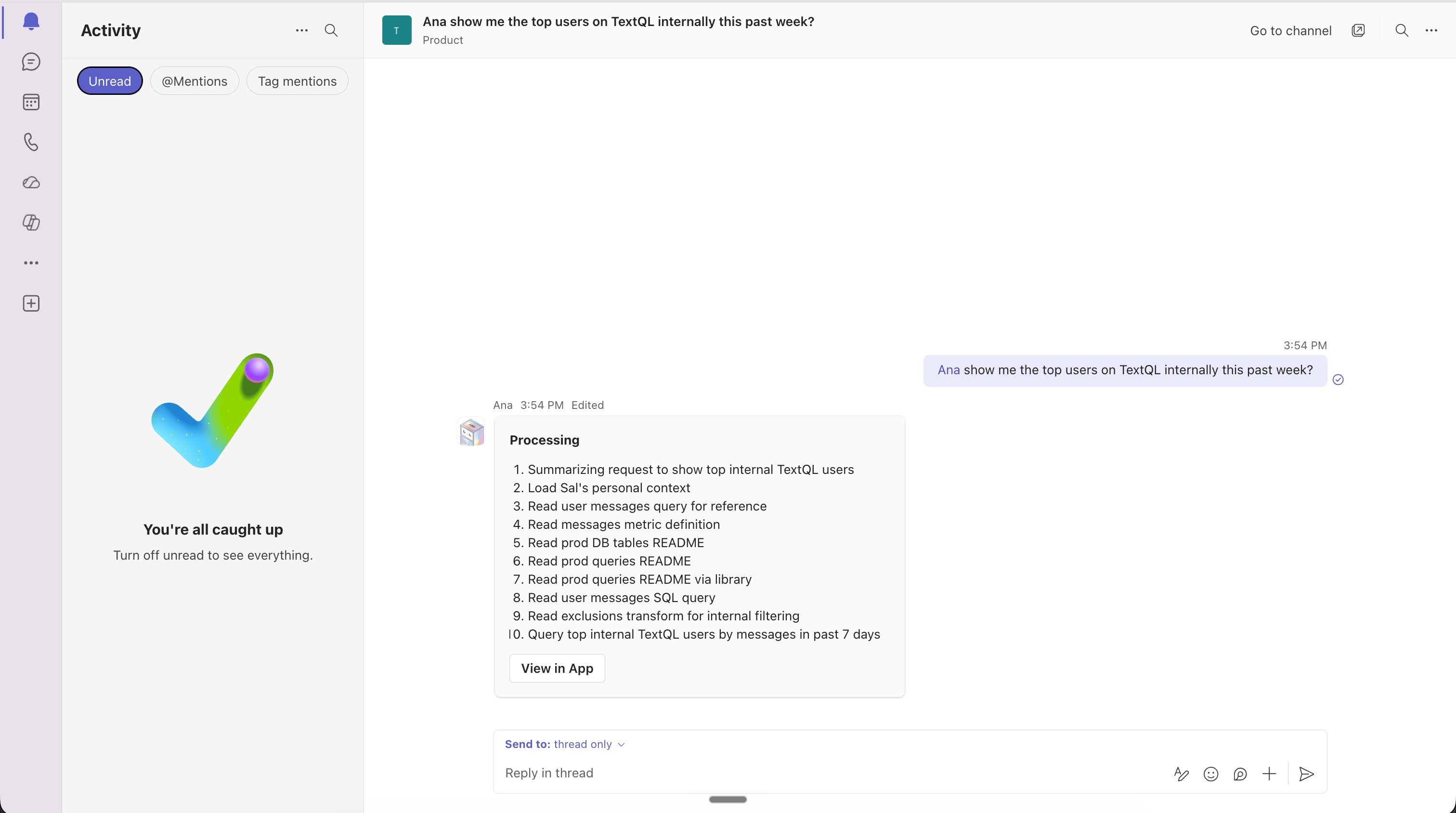
 * **With a Direct Message**: Open the Ana app from the Teams sidebar (or search "Ana" in chat) and message her directly to start a new chat and receive responses privately.
To send follow-up messages to Ana and continue her analysis, simply reply in the direct message.
* **With a Direct Message**: Open the Ana app from the Teams sidebar (or search "Ana" in chat) and message her directly to start a new chat and receive responses privately.
To send follow-up messages to Ana and continue her analysis, simply reply in the direct message.
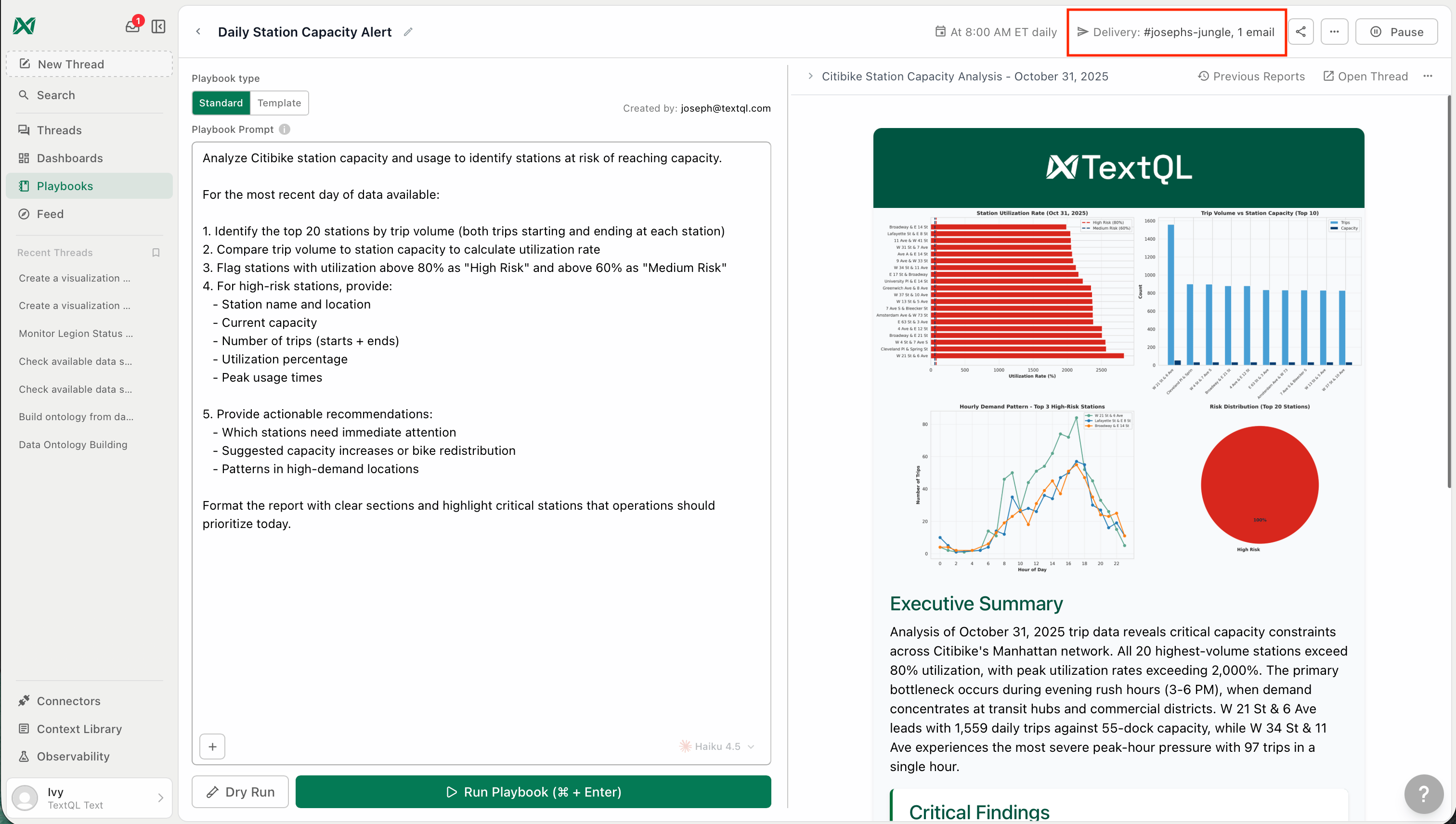
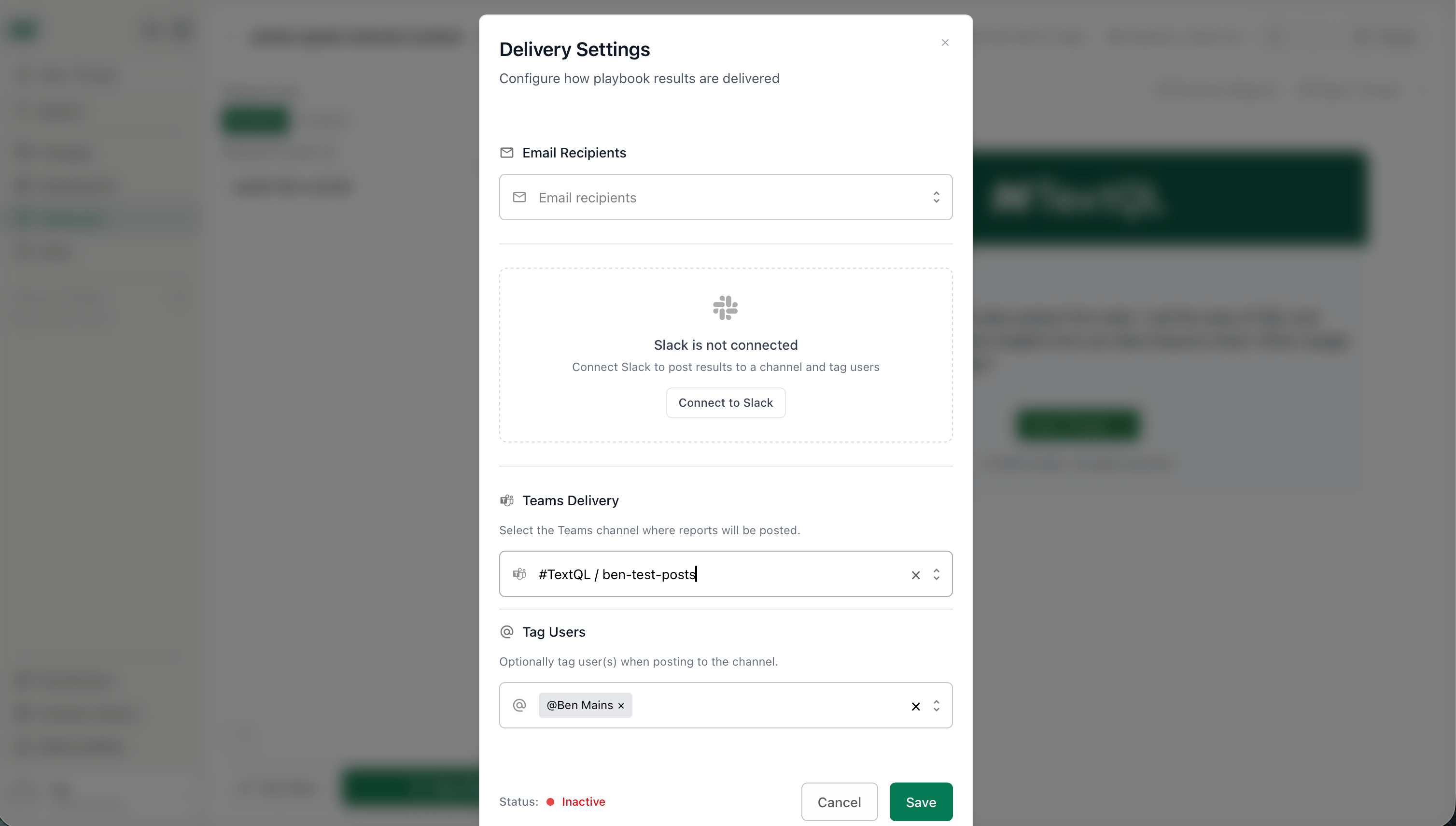
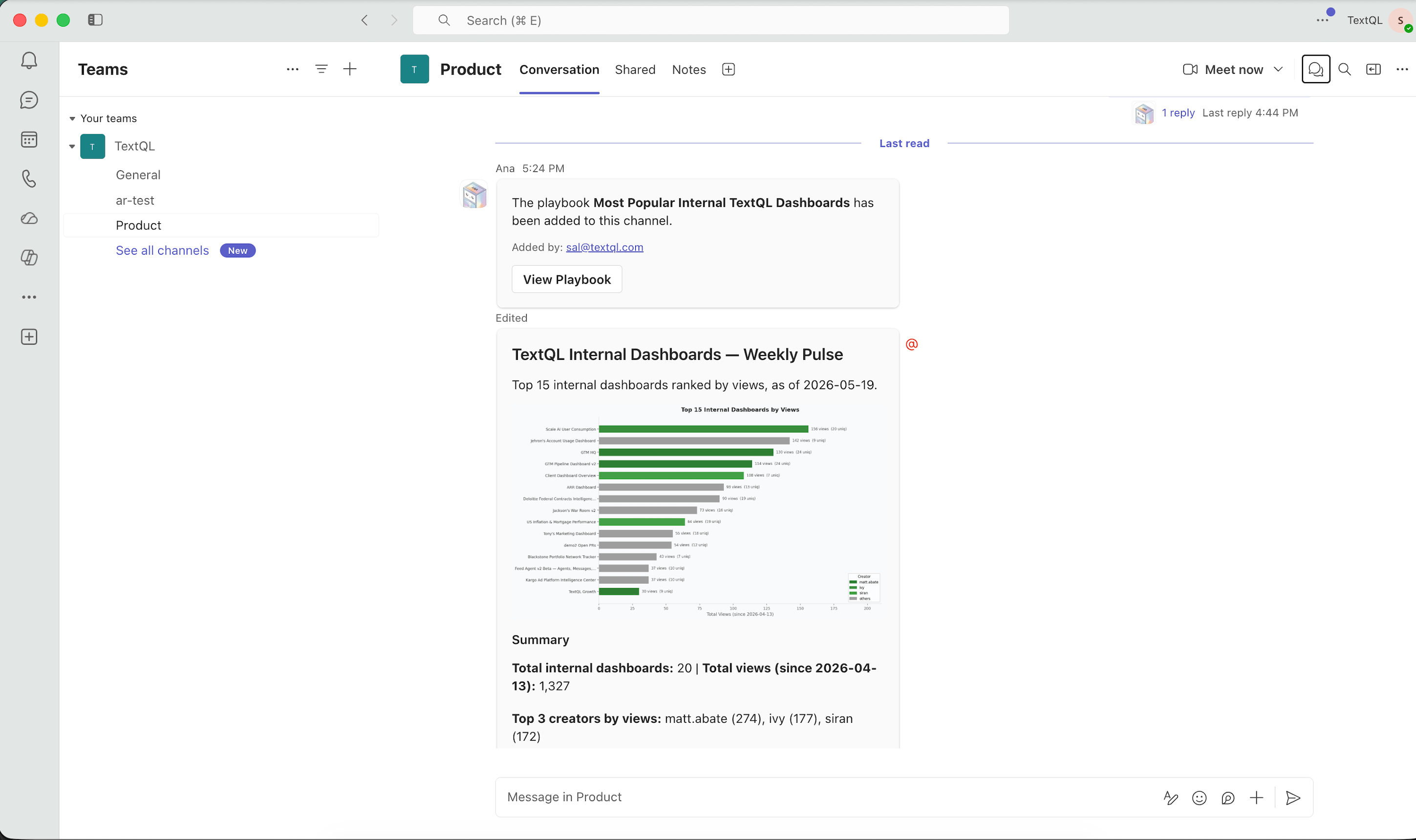
 * **Scheduled Playbook Reports**: Playbooks can be configured to deliver reports directly to a Teams channel on a schedule. Ana posts the results as a message in the channel at the configured interval — no manual prompting required. From there, anyone in the channel can reply in the thread to ask follow-up questions and continue the analysis without starting a new conversation.
 ### Commands
Ana understands a few commands in any chat, channel, or group chat:
| Command | What it does |
| - | - |
| `help` | Shows what Ana can do, the supported commands, and where to get support. |
| `new chat` | Starts a fresh conversation using your organization's current default connectors. |
| `report` | Shows how to report objectionable content to the TextQL team. |
### Multiple Workspaces on One Microsoft Tenant
A single Microsoft 365 tenant can be connected to more than one TextQL workspace. If you are a member of several of them, Ana cannot tell which one you mean, so the first time you ask her something she replies with a list and asks you to pick one. She remembers the choice and answers from that workspace, using its connectors and settings, from then on.
Type `switch workspace` at any time to pick a different one. If you belong to only one workspace on the tenant, Ana never asks.
## Teams Channel Context
In addition to answering questions, Ana can also use channel-specific context.
Channel context ensures that whenever Ana is mentioned in a specific Teams channel, she has the right background information to guide her responses.
Channel context is managed through Playbooks:
1. **Create a New Playbook:** Navigate to the Playbooks section in the TextQL platform and click **Create Playbook**.
2. **Write the Channel Context:**
Use the provided prompt box to write instructions for Ana specific to this channel — the tone she should use, the audience she's speaking to, background knowledge she should assume, and any definitions she needs (metrics, KPIs, business terms). This is how you tailor Ana's behavior so her responses are relevant to the people in that channel.
3. **Select a Teams Channel:**
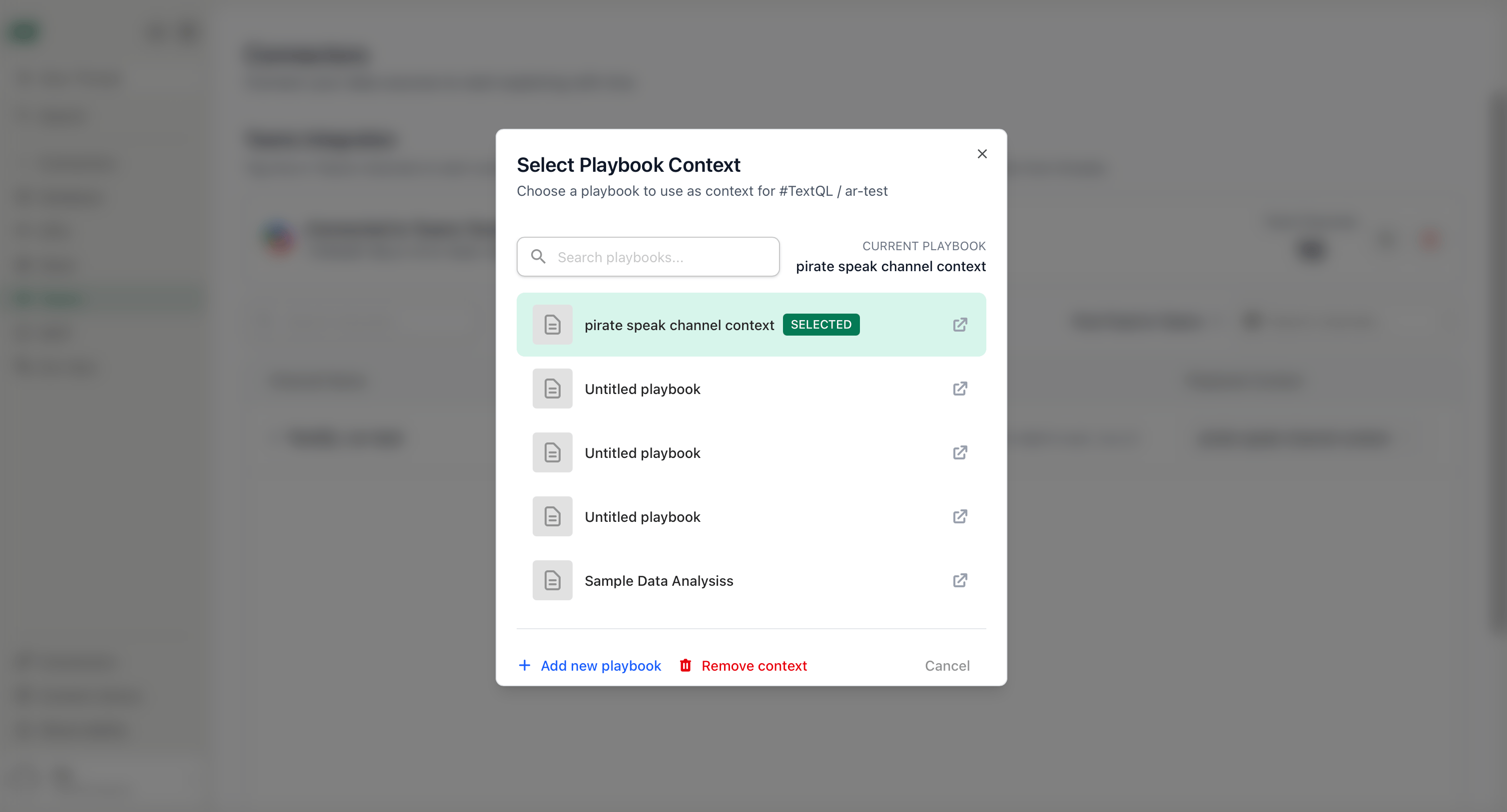
Click the **Delivery** button in the top right corner of the playbook editor, then use the channel selector to choose the Teams channel you want to associate with this playbook. Click **Set as Channel Context**, and then hit Save.
### Commands
Ana understands a few commands in any chat, channel, or group chat:
| Command | What it does |
| - | - |
| `help` | Shows what Ana can do, the supported commands, and where to get support. |
| `new chat` | Starts a fresh conversation using your organization's current default connectors. |
| `report` | Shows how to report objectionable content to the TextQL team. |
### Multiple Workspaces on One Microsoft Tenant
A single Microsoft 365 tenant can be connected to more than one TextQL workspace. If you are a member of several of them, Ana cannot tell which one you mean, so the first time you ask her something she replies with a list and asks you to pick one. She remembers the choice and answers from that workspace, using its connectors and settings, from then on.
Type `switch workspace` at any time to pick a different one. If you belong to only one workspace on the tenant, Ana never asks.
## Teams Channel Context
In addition to answering questions, Ana can also use channel-specific context.
Channel context ensures that whenever Ana is mentioned in a specific Teams channel, she has the right background information to guide her responses.
Channel context is managed through Playbooks:
1. **Create a New Playbook:** Navigate to the Playbooks section in the TextQL platform and click **Create Playbook**.
2. **Write the Channel Context:**
Use the provided prompt box to write instructions for Ana specific to this channel — the tone she should use, the audience she's speaking to, background knowledge she should assume, and any definitions she needs (metrics, KPIs, business terms). This is how you tailor Ana's behavior so her responses are relevant to the people in that channel.
3. **Select a Teams Channel:**
Click the **Delivery** button in the top right corner of the playbook editor, then use the channel selector to choose the Teams channel you want to associate with this playbook. Click **Set as Channel Context**, and then hit Save.
 4. **Keep the Playbook deactivated:**
The playbook must remain **deactivated** to function as channel context.
Any datasets and dashboards attached to the playbook are automatically included in the Teams conversation when channel context is applied. If an attachment fails, Ana will post a warning in the thread so you know to investigate.
This feature allows you to maintain different contexts across different Teams channels—for example, one channel may hold context about sales performance, while another focuses on product metrics.
## Need Help?
For further assistance or to request early access, please contact [support@textql.com](mailto:support@textql.com).
## AI-Generated Content
Ana uses generative AI to analyze your data and write her replies. Every reply is labeled as AI-generated in Teams and carries a disclaimer, because AI-generated content may be incorrect. Verify important details before acting on them.
## Reporting Objectionable Content
If Ana returns objectionable, harmful, or inappropriate content, report it in any of these ways:
* Select **Report content** on the message. This opens an email to our team with the subject pre-filled.
* Type `report` in any chat with Ana to see the reporting instructions.
* Email [support@textql.com](mailto:support@textql.com?subject=Report%20objectionable%20content) directly.
Include the team and channel name, the date and time of the message, and a copy of the content. If the content came from a scheduled playbook report, include the playbook name too. We review every report and respond within one business day.
## Privacy Policy
For information about how we handle your data and protect your privacy when using TextQL's integration for Microsoft Teams, please review our [Privacy Policy](https://textql.com/privacy).
This documentation is built and hosted on [Mintlify](https://mintlify.com), a developer documentation platform.
4. **Keep the Playbook deactivated:**
The playbook must remain **deactivated** to function as channel context.
Any datasets and dashboards attached to the playbook are automatically included in the Teams conversation when channel context is applied. If an attachment fails, Ana will post a warning in the thread so you know to investigate.
This feature allows you to maintain different contexts across different Teams channels—for example, one channel may hold context about sales performance, while another focuses on product metrics.
## Need Help?
For further assistance or to request early access, please contact [support@textql.com](mailto:support@textql.com).
## AI-Generated Content
Ana uses generative AI to analyze your data and write her replies. Every reply is labeled as AI-generated in Teams and carries a disclaimer, because AI-generated content may be incorrect. Verify important details before acting on them.
## Reporting Objectionable Content
If Ana returns objectionable, harmful, or inappropriate content, report it in any of these ways:
* Select **Report content** on the message. This opens an email to our team with the subject pre-filled.
* Type `report` in any chat with Ana to see the reporting instructions.
* Email [support@textql.com](mailto:support@textql.com?subject=Report%20objectionable%20content) directly.
Include the team and channel name, the date and time of the message, and a copy of the content. If the content came from a scheduled playbook report, include the playbook name too. We review every report and respond within one business day.
## Privacy Policy
For information about how we handle your data and protect your privacy when using TextQL's integration for Microsoft Teams, please review our [Privacy Policy](https://textql.com/privacy).
This documentation is built and hosted on [Mintlify](https://mintlify.com), a developer documentation platform.