Understand how to apply context at different levels: organization, role, and connector
Understanding Context Scopes
Context scoping determines who sees your context and when they see it. TextQL offers flexible scoping options that let you provide the right context to the right people at the right time.
Key Concept: Context can be scoped to your entire organization, specific roles, specific connectors, or combinations of roles and connectors.
The Three Scoping Dimensions
Context in TextQL operates across three dimensions:
Organization
Context that applies to everyone in your organization, regardless of role or connector.
Role
Context that applies to users with specific assigned roles.
Connector
Context that applies when querying specific data sources.
Organization-Level Context
Organization context is the broadest scope and applies to every user in your organization across all connectors.
When to Use Organization Context
Use organization-level context for:
Company-wide business rules and policies
Universal terminology and definitions
General data interpretation guidelines
Organization-wide best practices
Example Organization Context
# Acme Corp Business Context## Fiscal Calendar- Our fiscal year runs from July 1 to June 30- Q1: July-September, Q2: October-December, Q3: January-March, Q4: April-June## Currency Standards- All financial reporting should be in USD- Use 2 decimal places for currency values## Key Business Rules- Revenue is recognized at time of shipment, not order- Refunds are excluded from revenue calculations
Important Limitation
Only One Organization Context AllowedYou can only have one organization-level context document. If you need to add more organization-wide information, edit your existing organization context rather than creating a new one.
Role-Based Context
Role-based context applies to users who have been assigned specific roles in your organization.
When to Use Role-Based Context
Use role-based context for:
Department-specific terminology or processes
Persona-based customization of Ana’s behavior
Skill-level appropriate guidance
Team-specific best practices
Example Role Contexts
For “Sales Team” Role:
# Sales Team Context## CRM Fields- **Stage**: Current position in sales pipeline- **Close Date**: Expected contract signature date- **ARR**: Annual Recurring Revenue## Reporting Preferences- Focus on pipeline velocity and conversion rates- Always include win/loss analysis
How Roles Work
Roles in TextQL are part of the RBAC (Role-Based Access Control) system. They:
Control access to features like dashboards and playbooks
Enable custom context for different user personas
Are assigned by administrators
Multiple Roles: Users can have multiple roles, and they’ll receive context from all assigned roles.
Connector-Based Context
Connector-based context applies when users are actively querying a specific data source.
When to Use Connector-Based Context
Use connector-based context for:
Database-specific schema information
Data source-specific business logic
Connector-specific query patterns
Data quality notes or caveats
Example Connector Context
For “Salesforce Production” Connector:
# Salesforce Production Database Context## Schema Information- **Account**: Customer organizations- **Opportunity**: Sales deals in pipeline- **Contact**: Individual people at customer organizations## Important Notes- Closed-Won opportunities have Stage = "Closed Won"- Amount field is in USD- Data is synced hourly at :15 past the hour## Common Queries- Pipeline value: SUM(Amount) WHERE Stage != "Closed Lost"- Win rate: COUNT(Closed Won) / COUNT(All Opportunities)
Best Practices for Connector Context
Limit Schema Information
Don’t document your entire schema in context. Focus on:
Non-obvious table relationships
Important business logic in the data
Common query patterns
Ana can discover schema through other means, so context should add business understanding, not just technical details.
Document Data Quirks
Use connector context to highlight:
Known data quality issues
Unusual field meanings
Important filters or exclusions
Role + Connector Intersection
The most targeted form of context applies only when a user with a specific role queries a specific connector.
When to Use Intersection Context
Use role + connector context for:
Highly specialized use cases
Role-specific views of particular data sources
Advanced users who need detailed technical context
Compliance or security-sensitive scenarios
Example Intersection Context
For “Finance Team” Role + “Salesforce Production” Connector:
# Finance Team - Salesforce Context## Revenue Recognition RulesWhen analyzing Salesforce data for financial reporting:- Only include opportunities with Stage = "Closed Won"- Use CloseDate for revenue period assignment- Exclude opportunities with Type = "Internal"## Required FiltersAlways apply these filters for financial reports:- IsDeleted = false- Amount > 0- CloseDate within reporting period
How Intersection Works
For intersection context to apply, both conditions must be true:
The user must have the specified role assigned
The user must be actively chatting with the specified connector
If either condition is false, the context won’t be applied.
Context Priority and Layering
When multiple context documents apply to a user, Ana considers all of them. Context is layered from broadest to most specific:
1
Organization Context
Always applies to every user. This is the foundation layer that everyone sees.
2
Role Context
Applies if the user has the specified role assigned. Adds role-specific information on top of organization context.
3
Connector Context
Applies when the user is actively querying the specified data source. Adds data-specific information.
4
Role + Connector Context
Applies only when both the role and connector match. The most targeted layer for highly specialized needs.
All Applicable Context is Used: Ana doesn’t choose one context over another. She considers all context that applies to the current user and situation.
Scoping Strategy
The best way to build context for a new connector is to let Ana learn it with you:
1
Connect Your Data Source
Set up a new connector in TextQL and start a chat with it.
2
Query Naturally
Ask Ana questions about the data. She’ll explore the schema, run SQL queries, and sometimes fail as she learns the shape of your data — that’s expected.
3
Ask Ana to Write Your Context
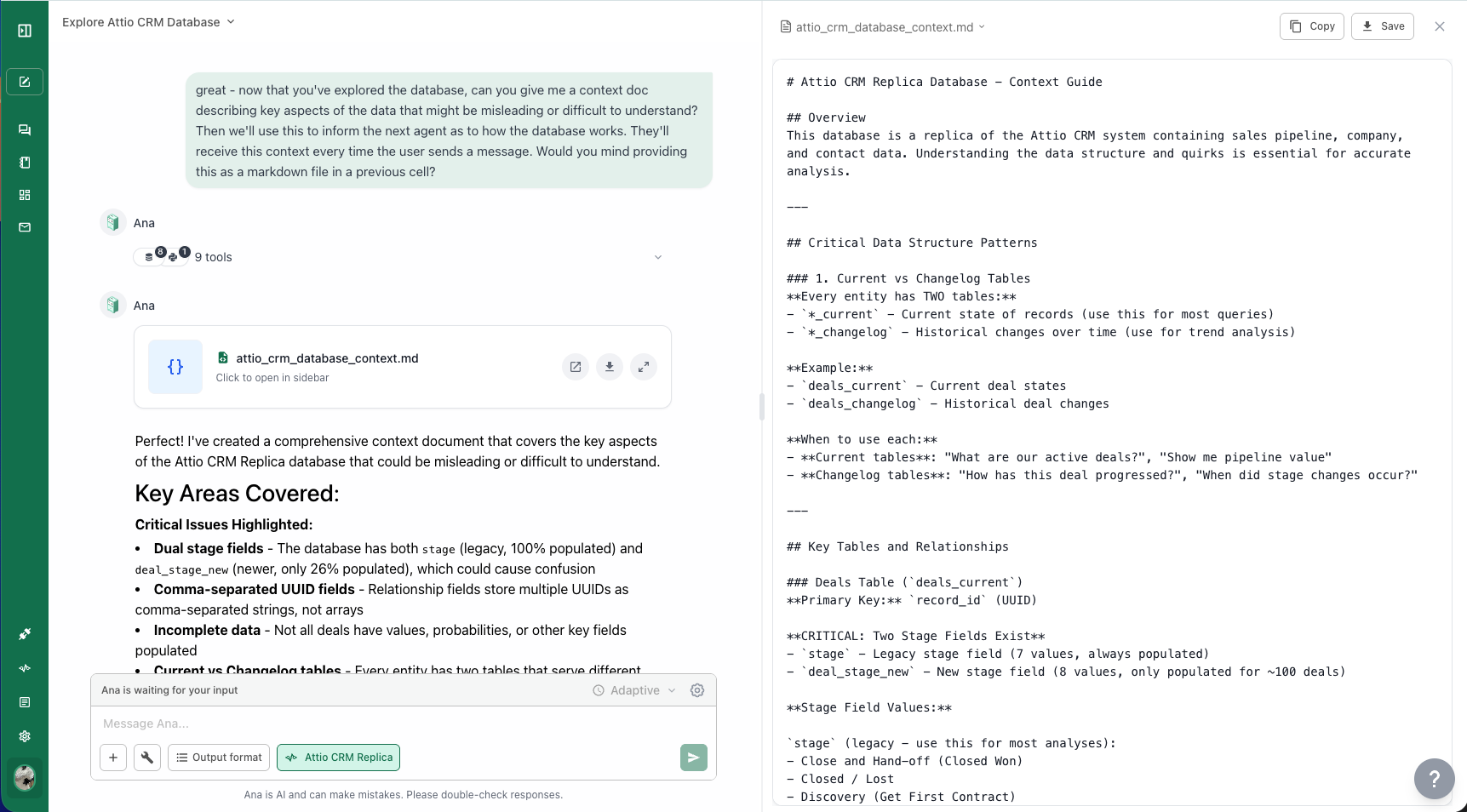
Once you’ve had a successful chat, ask Ana: “Can you write me a context document as markdown that I can copy back to your context library?” She’ll produce a well-structured context document based on what she learned.
Asking Ana to generate a context document after exploring a new connector
4
Copy It to the Context Library
Open the Context Library, create a new context document scoped to that connector, and paste in what Ana wrote. Currently, context must be manually copied from the chat — there is no automatic context updating from conversations, except through the GitHub integration.
What’s Next?
Context Editor
Return to the editor guide to create your scoped context documents
GitHub Integration
Manage context documents through version-controlled GitHub repositories